

What this page answers
How to change the product images from the dashboard, with a clear picture of what will change before anything is sent.
Whose data and scope
- One product and one SKU in the selected store and marketplace. When the ASIN has several SKUs, a SKU picker in the header chooses whose images you edit.
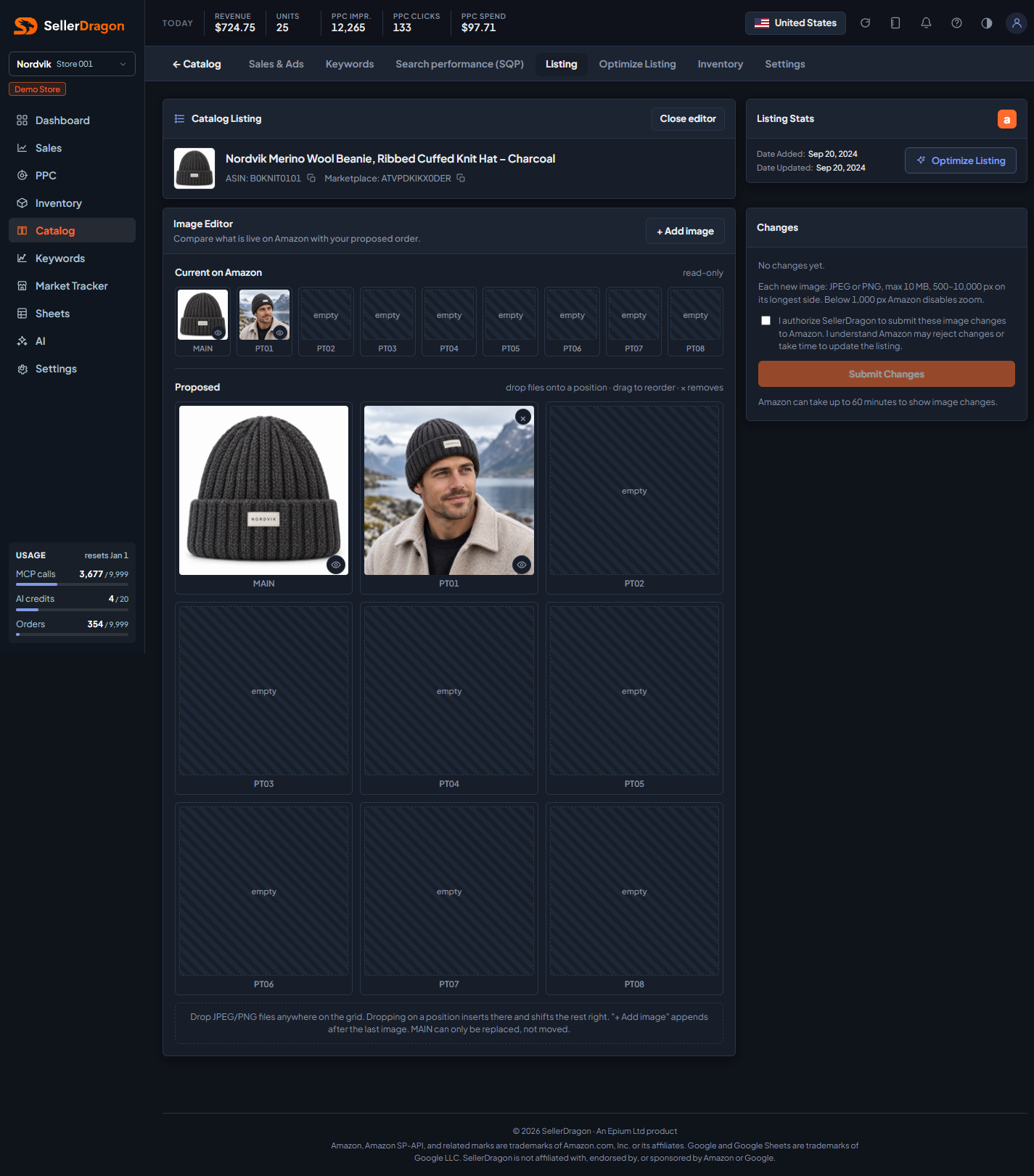
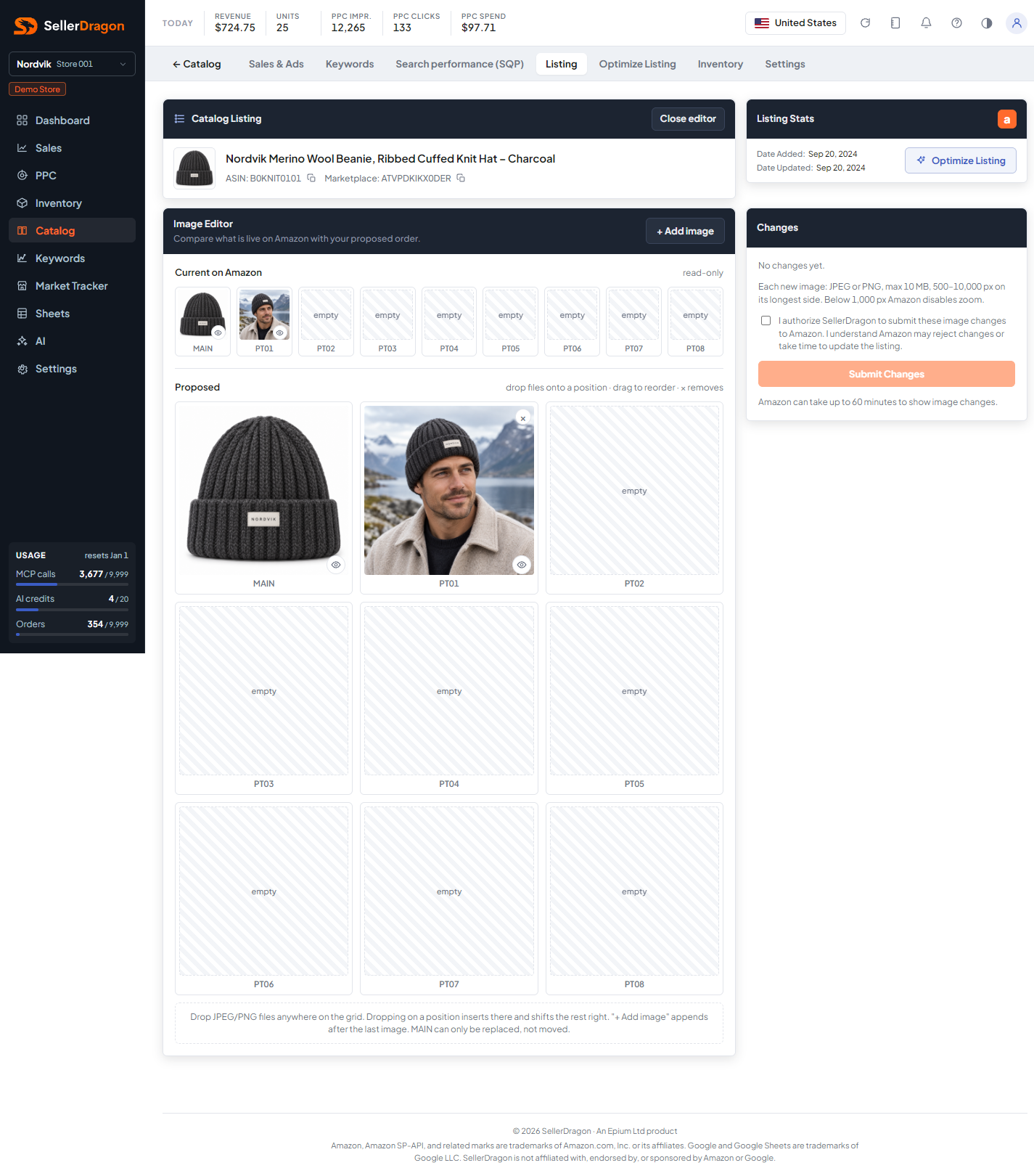
- The left grid is what is live on Amazon as last read. The right grid is your proposal; nothing is uploaded or sent until you submit.
- On submit the new files are uploaded, then one job pushes the full image set to Amazon. Amazon accepts first and applies later; images can take up to an hour. The job keeps re-reading the listing until the new images are visible and watches for two hours after that, because Amazon has been seen to drop a fresh image set and roll back to the old one.
How to read it
Current on Amazon
The nine slots as they are live: MAIN then PT01 to PT08. Read-only.
Proposed grid
- Drop JPEG or PNG files anywhere on the grid, or use + Add image to append after the last image. Dropping on a position inserts there and shifts the rest right.
- Drag an image to reorder. The cross removes it. MAIN can only be replaced by a new file, never moved.
- Each new file is checked in the browser and again on the server: JPEG or PNG, at most 10 MB, 500 to 10,000 pixels on the longest side. Below 1,000 pixels Amazon disables zoom, and the slot says so.
- Changing MAIN shows a warning: Amazon requires a pure white background with only the product, and a failing main image can suppress the listing.
- When all nine positions are filled you must remove one before adding.
Changes and submit
The Changes card lists every position that differs from live: new image, moved from another position, or removed. Tick the authorisation box and submit. The status line then follows the job: submitting, accepted, rejected with Amazon's reason, or still processing. Close editor returns to the Listing section and asks first when you have unsent changes.
Where to go next
- Listing texts and images to see the live images and refresh them from Amazon.
- Catalog issues if Amazon suppresses the listing over an image.
Something on this page unclear?
Ask us how