

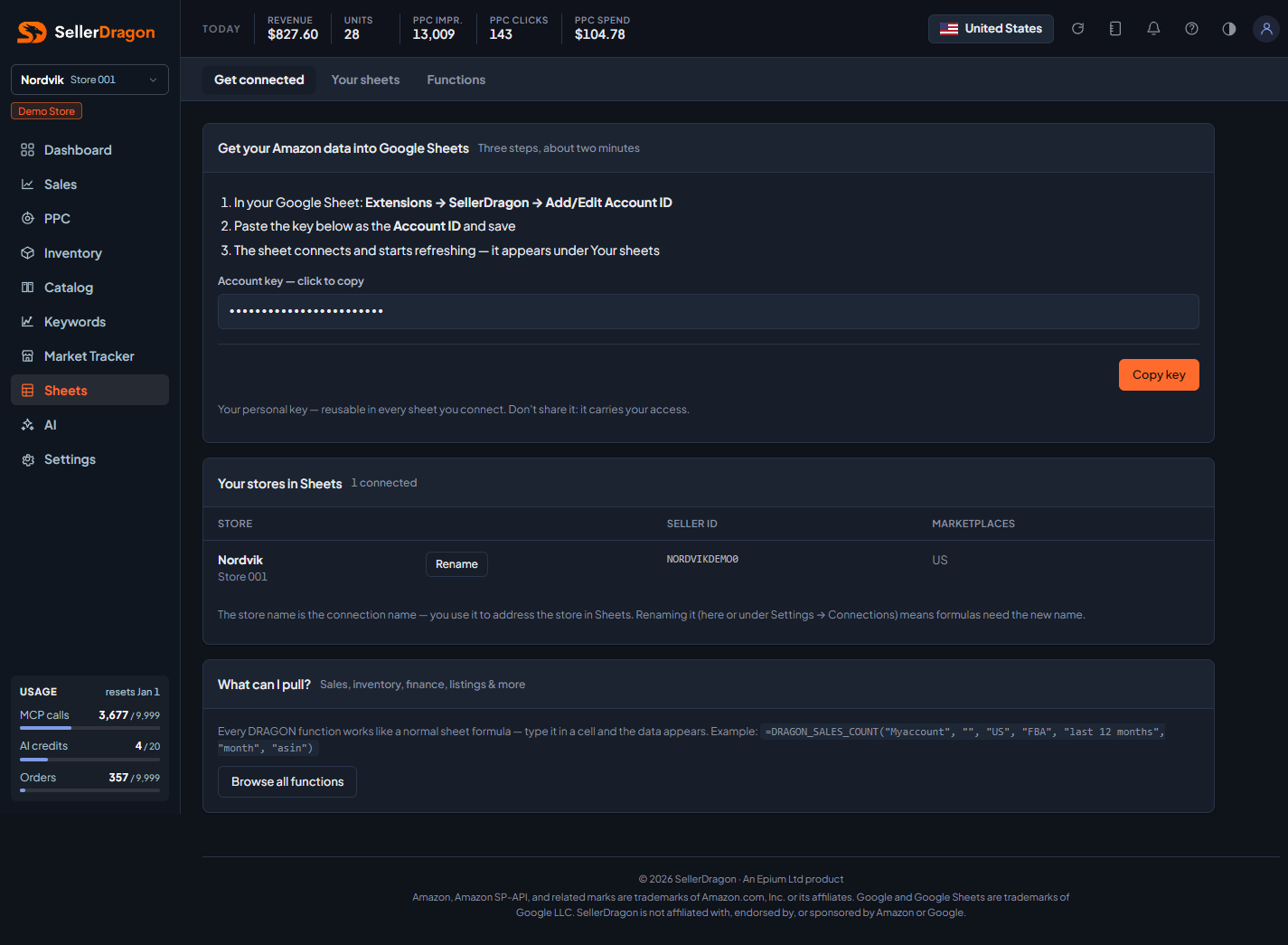
What this page answers
How to get your Amazon data into Google Sheets, and what to type in a formula to address a store.
Whose data and scope
- The key is yours, the logged-in user's, and carries your access: it unlocks the stores you can see, with your permissions. It is reusable in every sheet you connect. Do not share it.
- Each sheet you connect gets its own entry on the Your sheets page and can be revoked there.
How to read it
Three steps and your key
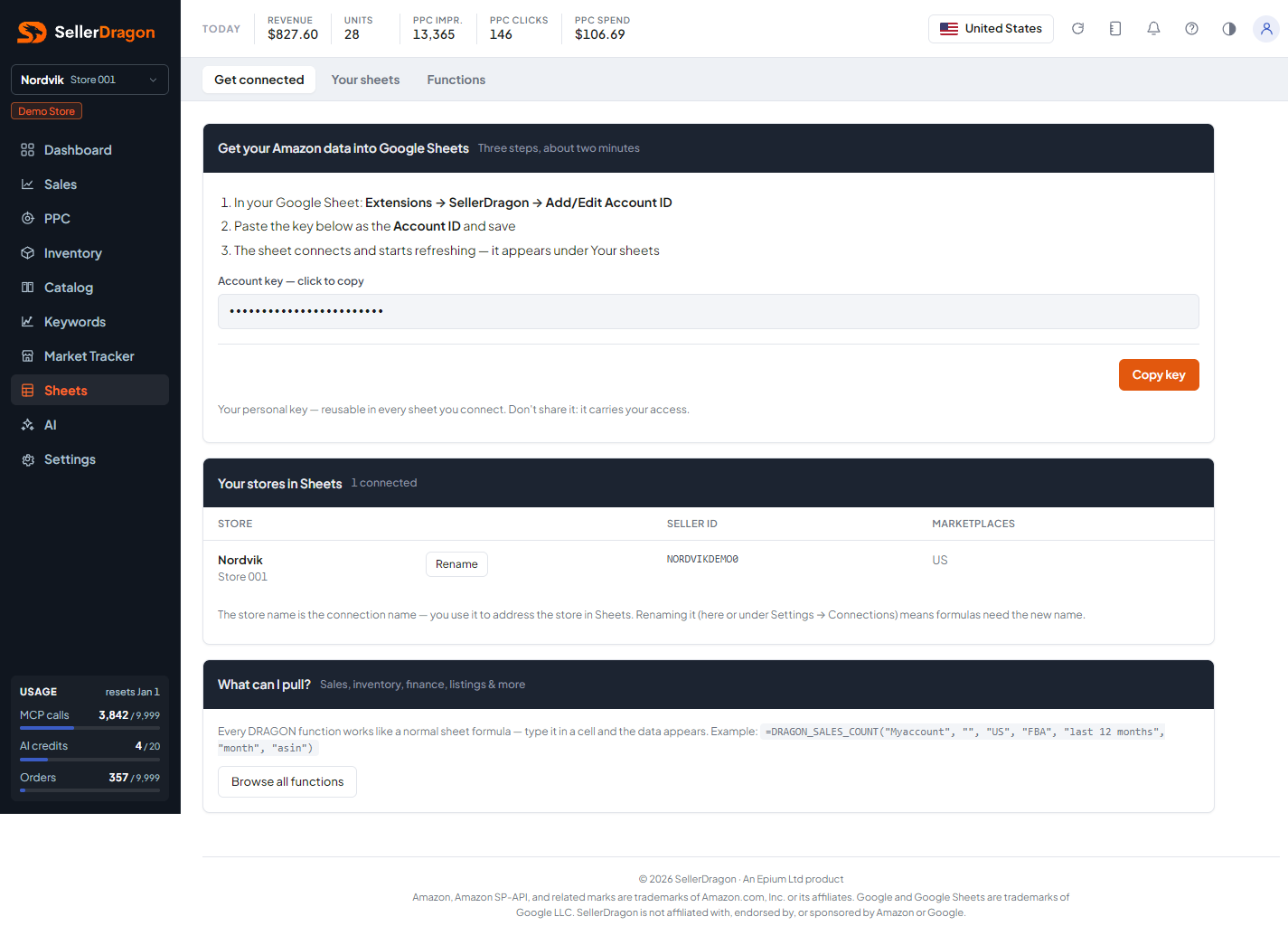
In your Google Sheet, open Extensions, SellerDragon, Add/Edit Account ID; paste the key as the Account ID and save; the sheet connects and starts refreshing. The key is shown with a copy button.
Your stores in Sheets
One row per connected store with the connection name, seller ID and marketplaces. The connection name is what you write in a formula to address the store. Managers can rename it inline here, the same as on the Connections page.
What can I pull
A short list of what the DRAGON functions return: sales, inventory, finance, listings and more. Every function works like a normal sheet formula; the full reference is on the Functions page.
Where to go next
- Functions for every formula with syntax and examples.
- Your sheets to see and revoke connected sheets.
- The Sheets section of the help site for the complete documentation.
Something on this page unclear?
Ask us how