

What this page answers
How to let the AI you already use read your account and prepare changes for your approval, and how to see which AI apps are connected.
Whose data and scope
- Connections belong to you, the logged-in user, not to the account. Everyone creates, sees and revokes their own.
- Every connection acts as you: it sees the stores you have access to and nothing more. Changes an AI prepares still follow the account's guardrails and wait for a human to approve them.
- The endpoint shown on the page is the same for everyone and is meant for onboarded users; it is deliberately not repeated here.
How to read it
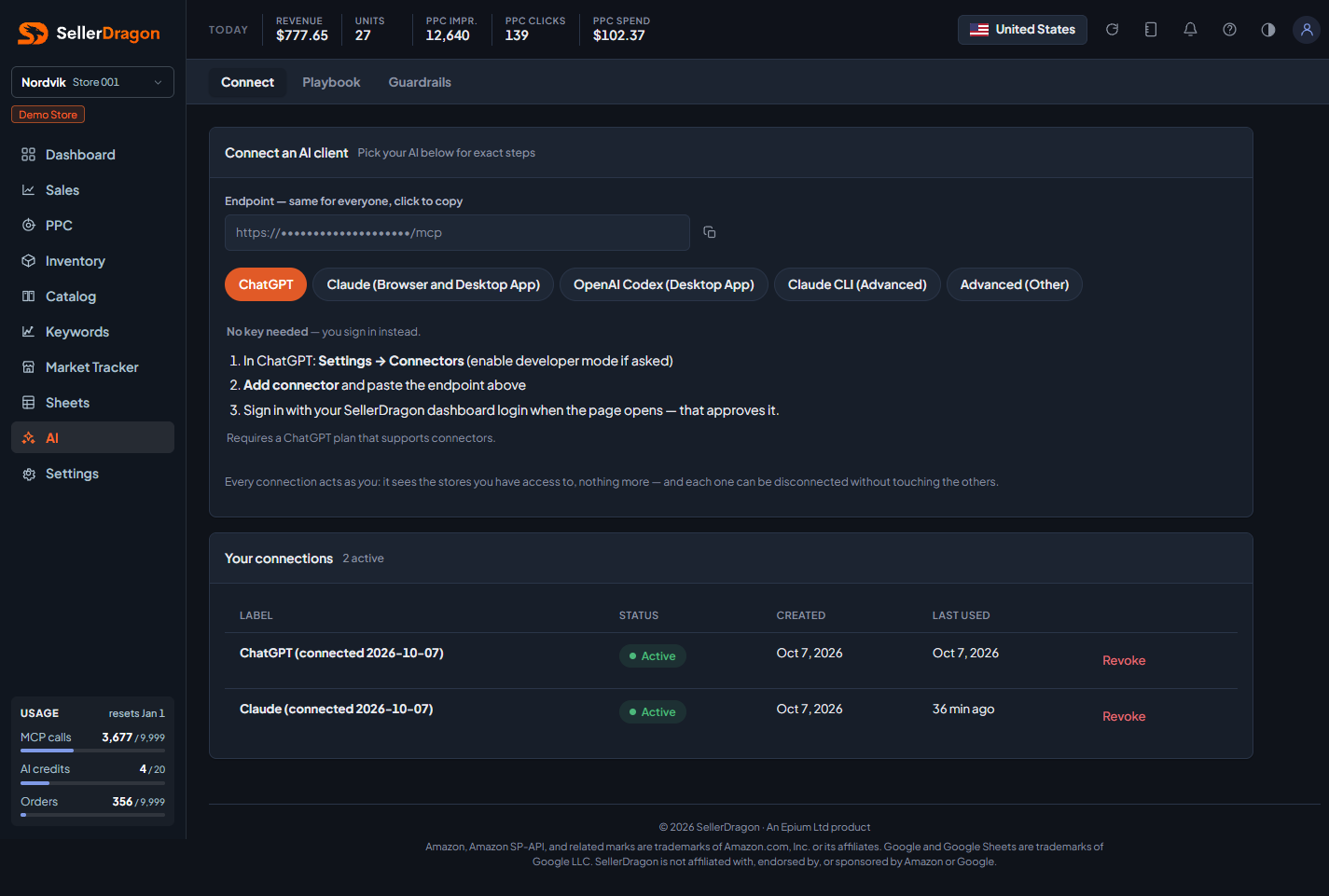
Connect an AI client
Pick your AI in the tab strip and follow the steps shown:
- ChatGPT and Claude (browser and desktop app) need no key. Add the endpoint as a connector in the app, and when a SellerDragon page opens, sign in with your dashboard login. That approves the connection and it appears in the table below.
- OpenAI Codex also signs in: tell Codex to install the MCP from the endpoint. Some Codex versions need a key instead; the tab has the form for that.
- Claude CLI uses a key. Create one and the next screen shows the exact command to run.
- Advanced (Other) is any MCP client, script or automation: the endpoint plus an Authorization header with the key.
Your new key
After Create key the page shows the key once, with the setup snippet filled in for the client you chose. Copy it now; only a fingerprint is stored, so it cannot be shown again. Lose it and you create a new one.
Your connections
One row per connection with its label, status, creation date and last use. Revoke ends that connection without touching the others. Revoked rows can be shown with the link under the table.
Where to go next
- Playbook to tell any connected AI how you want each area handled.
- Guardrails for the hard limits no AI can cross.
- Daily desk for the AI briefing that runs inside the dashboard.
Something on this page unclear?
Ask us how