

What this page answers
How to rewrite a listing around the words that actually sell in your niche, with the AI doing the drafting and you doing the choosing.
Whose data and scope
- One product in the selected store and marketplace.
- Competitor search uses Amazon's catalog through your store's connection, with the search term you type. Only the competitor listings you pick are read; their text is treated as data, never as instructions to the AI.
- Keyword extraction is free. Generating a draft costs one AI credit from your monthly allowance. Submitting is free and goes through the same listing job as the text editor.
- Read-only users can open the page but cannot run it.
How to read it
Step 1, Core keyword
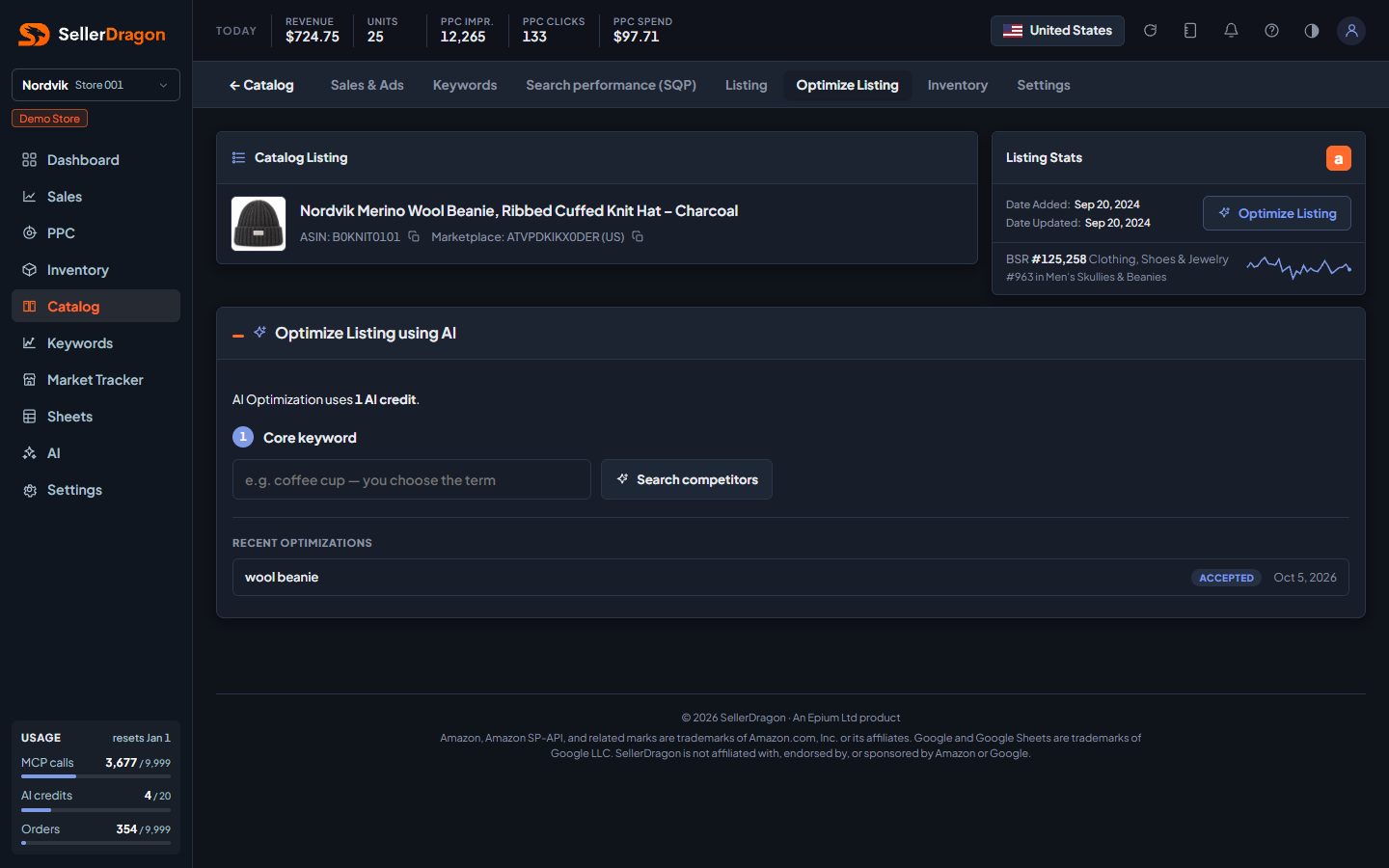
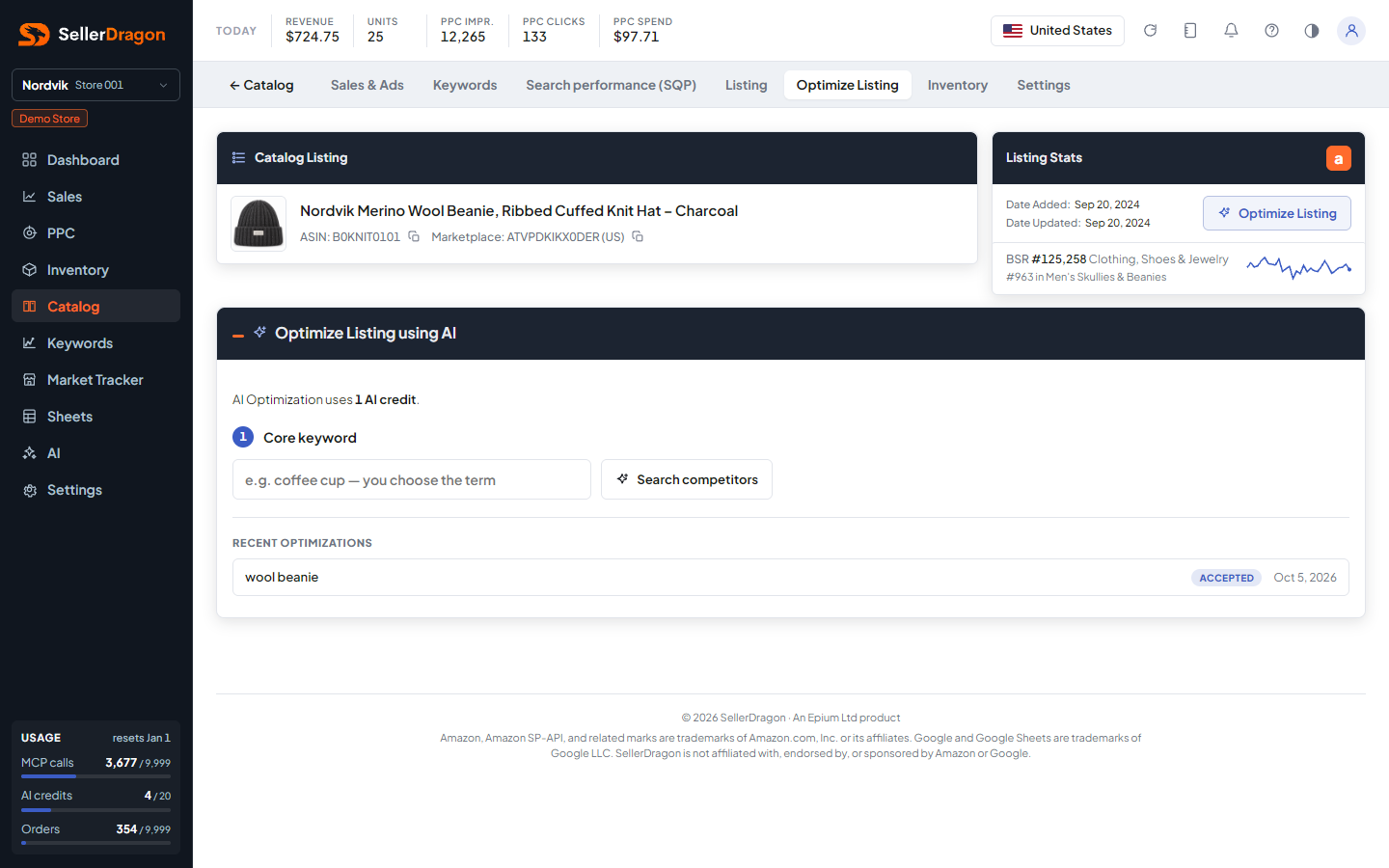
Type the main search term for the product, for example the one with the most purchases on the Keywords page, and press Search competitors. The page scans Amazon's results for that term.
Step 2, Pick competitors
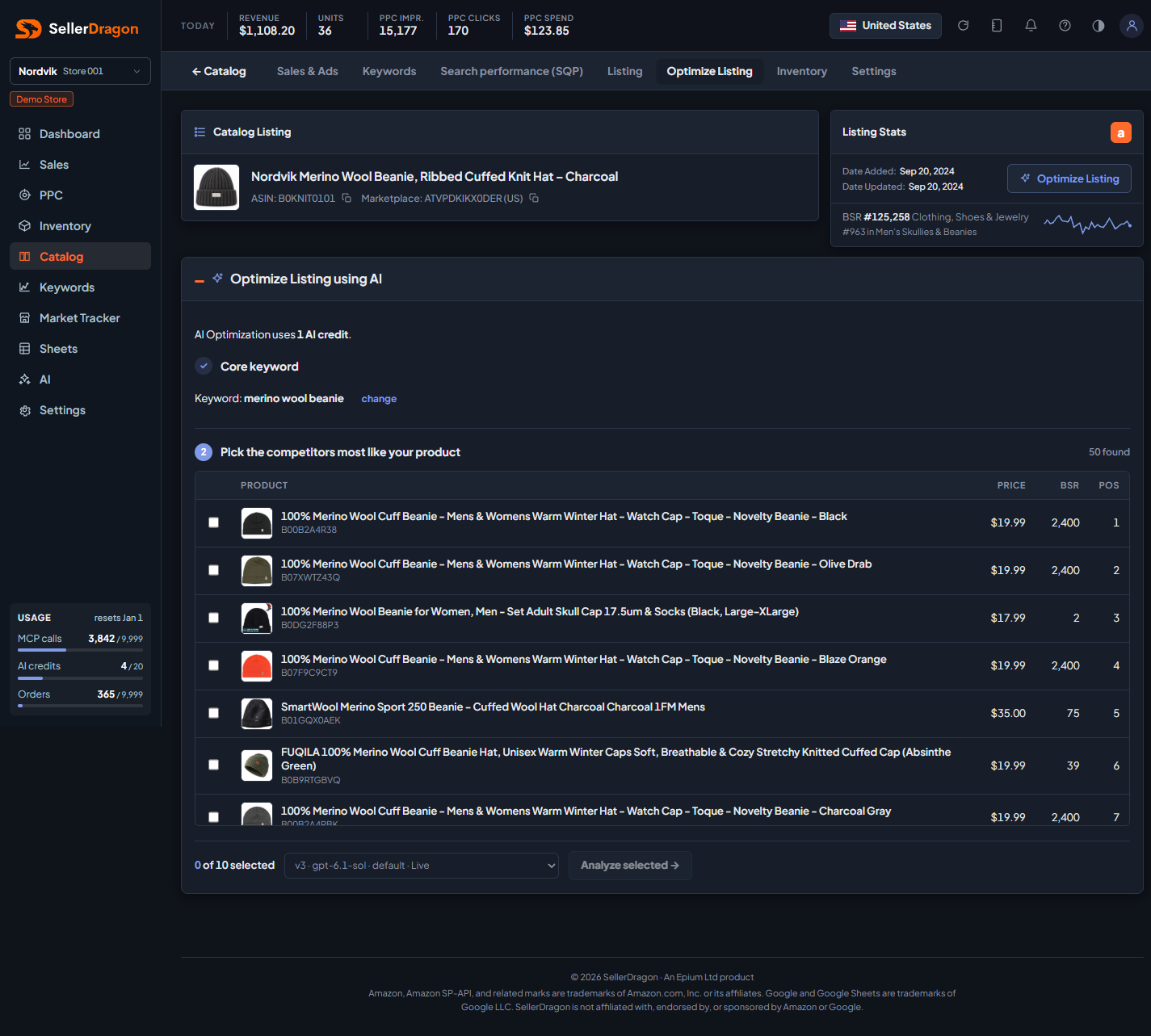
The results are listed with title, price, Best Sellers Rank and position in the search. Tick the ones most like your product; three to five is plenty. The AI reads their copy and extracts the phrases they rely on.
Step 3, Keywords
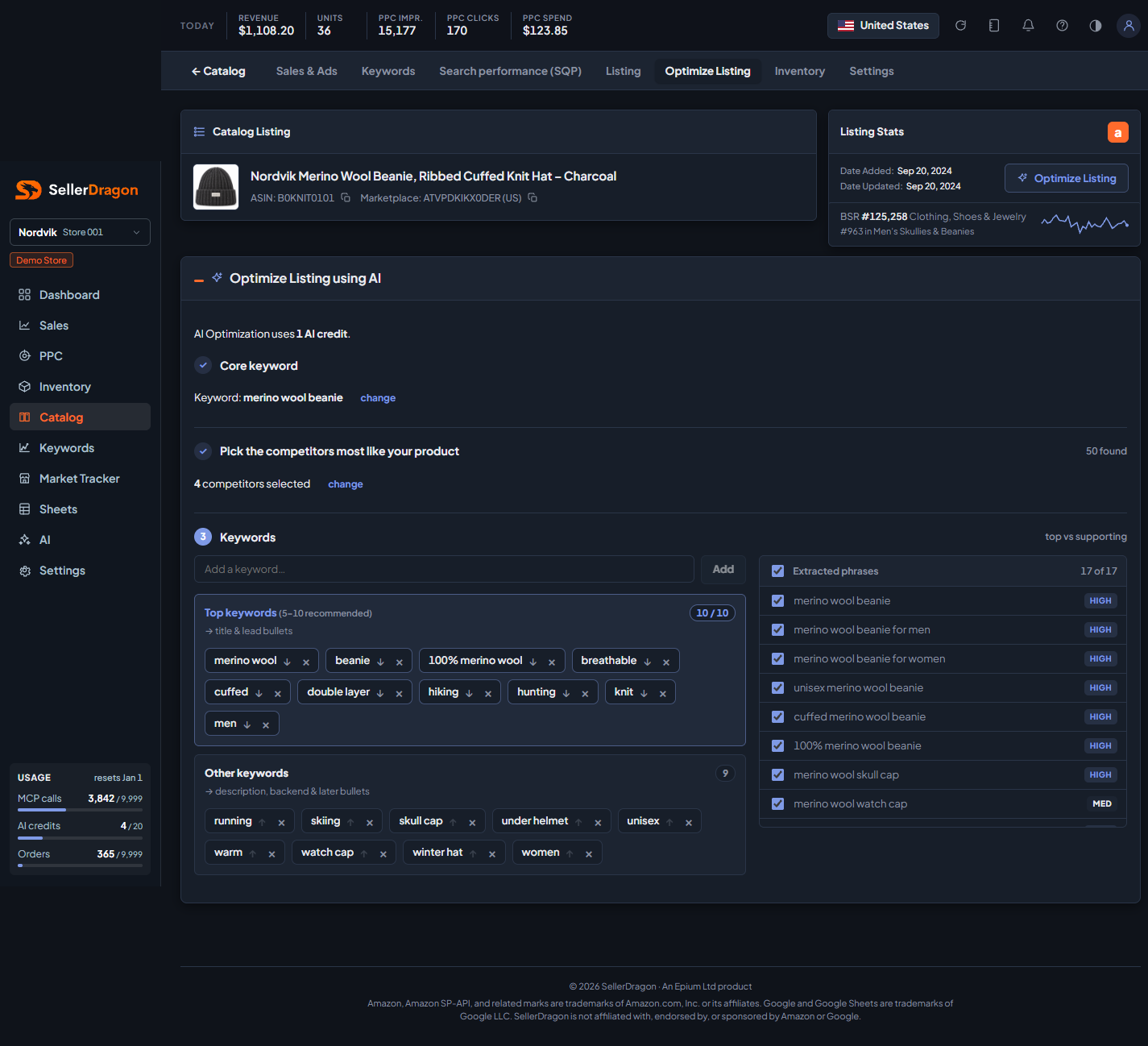
The extracted phrases are split into short keywords and ranked by how often they appear across the listings you picked. Keywords are shown in two tiers: Top keywords (up to 10) that the draft must build around, and Other keywords that it may use. Move a keyword between tiers, remove it, or add your own. Phrases that only one competitor uses, or that contain a rival brand name, are dropped before you see them.
Generate optimized listing takes one credit and writes the draft.
Step 4, Optimized listing
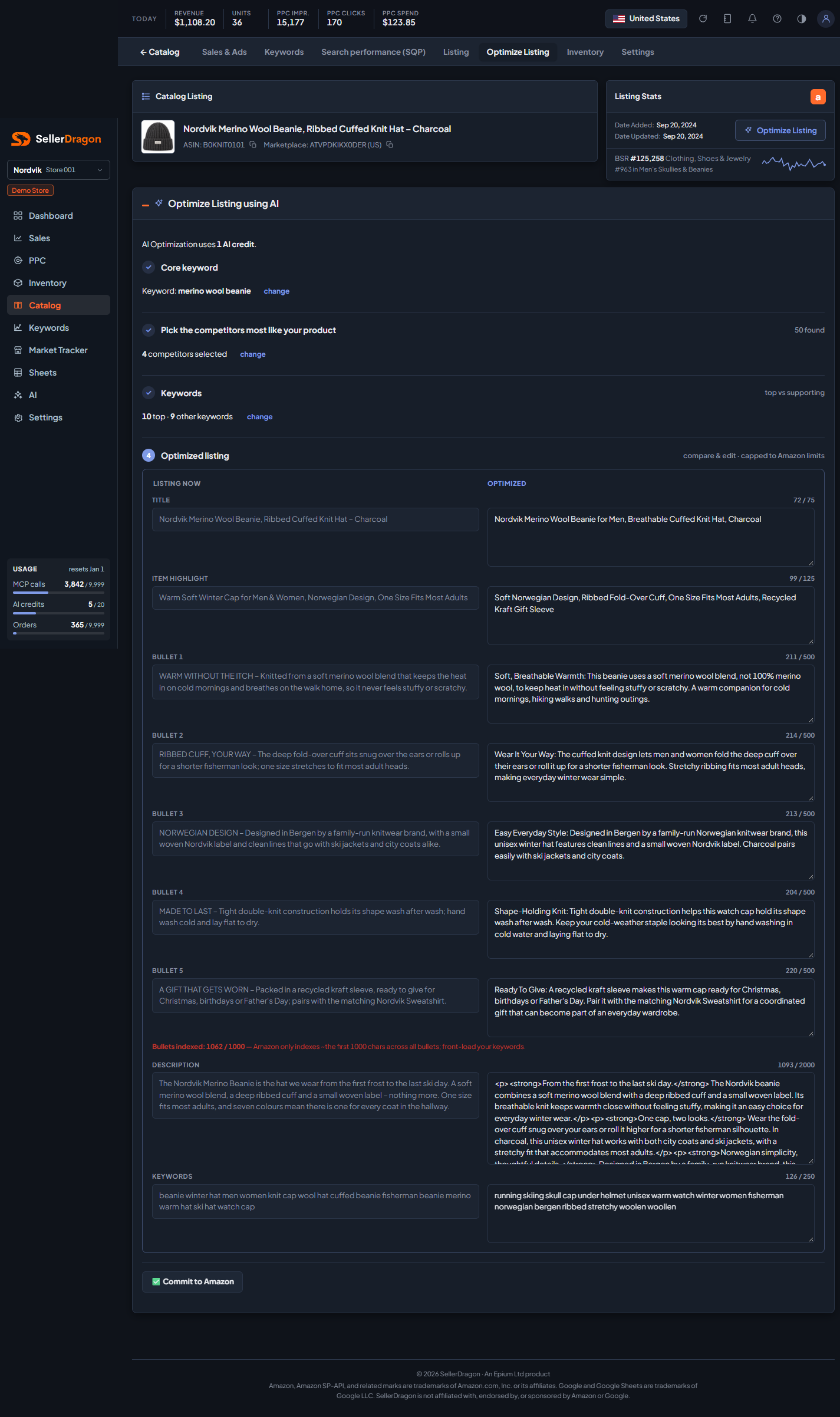
The draft title, item highlight, bullets, description and search terms, each next to the current text so you can compare. Edit anything; each field shows its count against the limit, the same limits as the text editor. A line under the bullets totals their characters against the roughly 1,000 Amazon indexes, so keywords belong early.
Step 5, Submit to Amazon
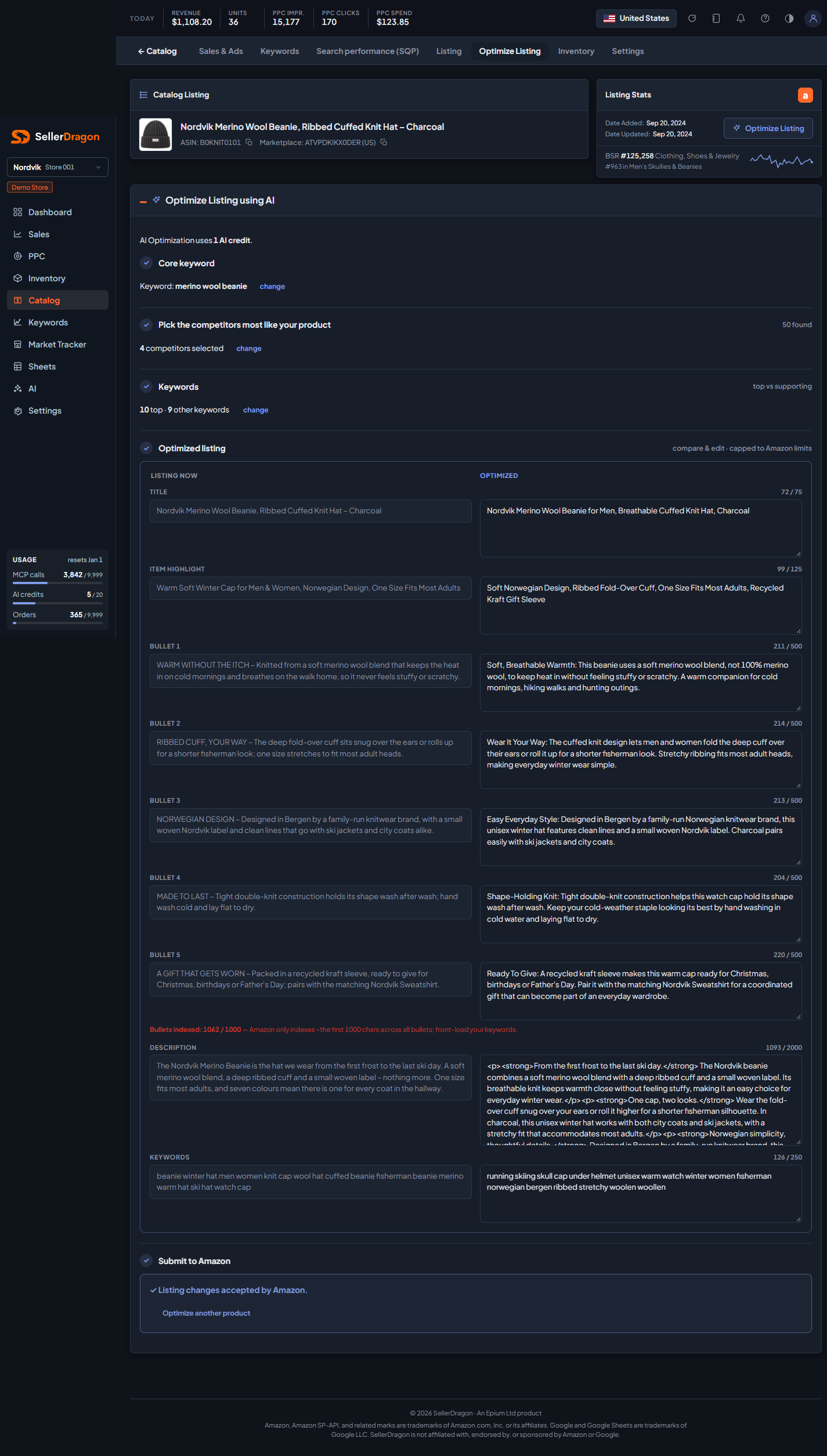
Commit to Amazon sends the draft. The status then reads as in the text editor: submitting, accepted, rejected with Amazon's reason, or still processing. Optimize another product starts over.
Recent optimizations
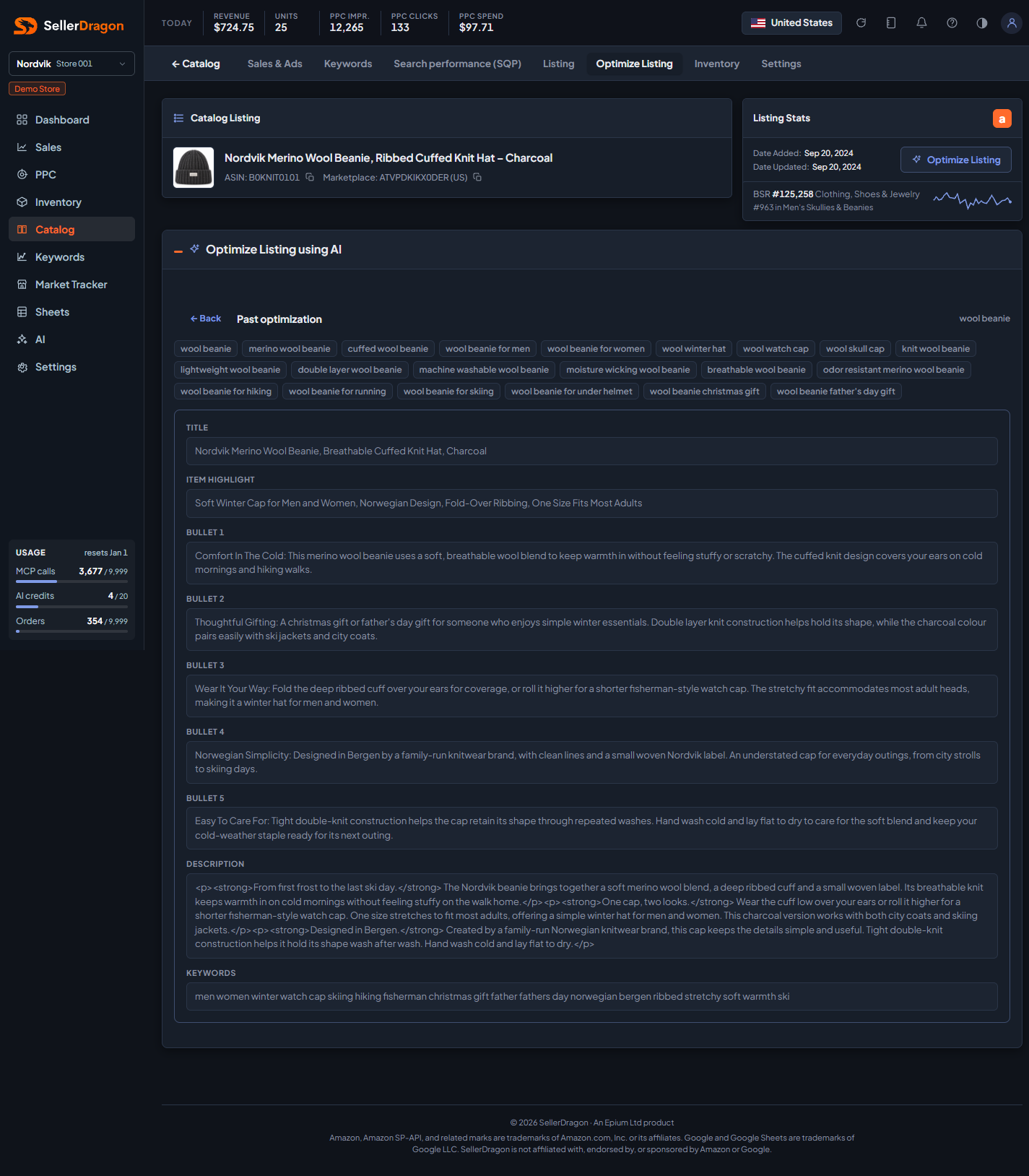
Past runs for this product with the core keyword, the outcome (Accepted, Rejected, Failed, Pending) and the date. Click one to see the keyword list and the listing it produced; this view is read-only.
Where to go next
- Listing: Keywords to pick a core keyword with real purchase data behind it.
- Listing text editor for a plain edit without the AI.
- AI guardrails to keep banned terms out of AI-written copy.