

What this page answers
Where this product ranks for the searches that matter, which searches you are tracking, and which searches you should be winning but are not.
Whose data and scope
- One product in the selected store and marketplace. For a parent, the family footprint is the best-ranked child per keyword.
- Rankings come from daily searches of Amazon's results pages for the keywords you track. A keyword is tracked when it is on this product's list, or when it is tracked for another product and this ASIN showed up in the results, which costs nothing extra.
- Brand Analytics and Opportunity numbers come from Amazon's Search Query Performance report, over the latest four reported weeks. These need Brand Registry.
- Each tracked keyword counts against your plan's keyword limits, per ASIN and per store. The caps shown in the Manage tab are the ones enforced.
How to read it
Rankings tab
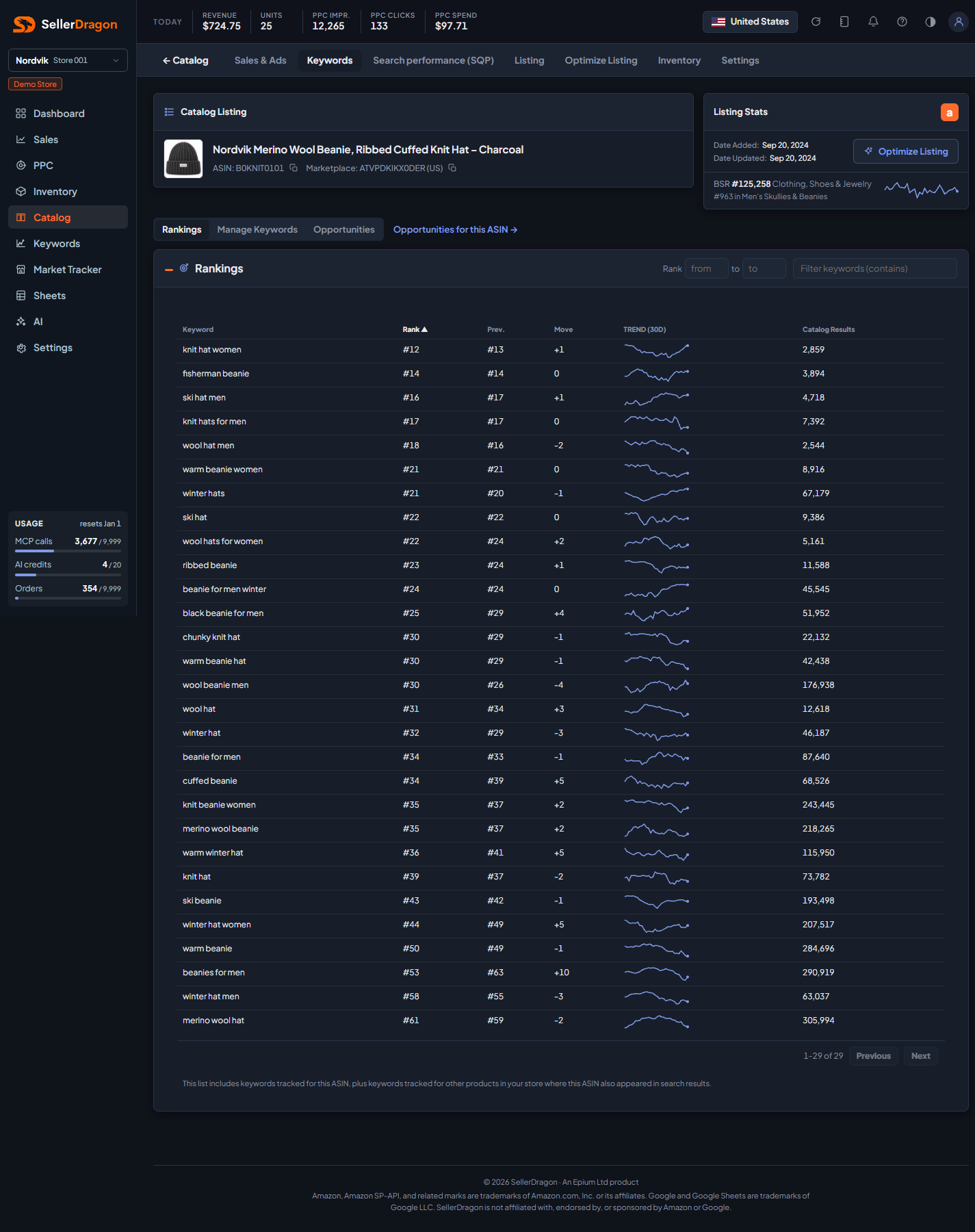
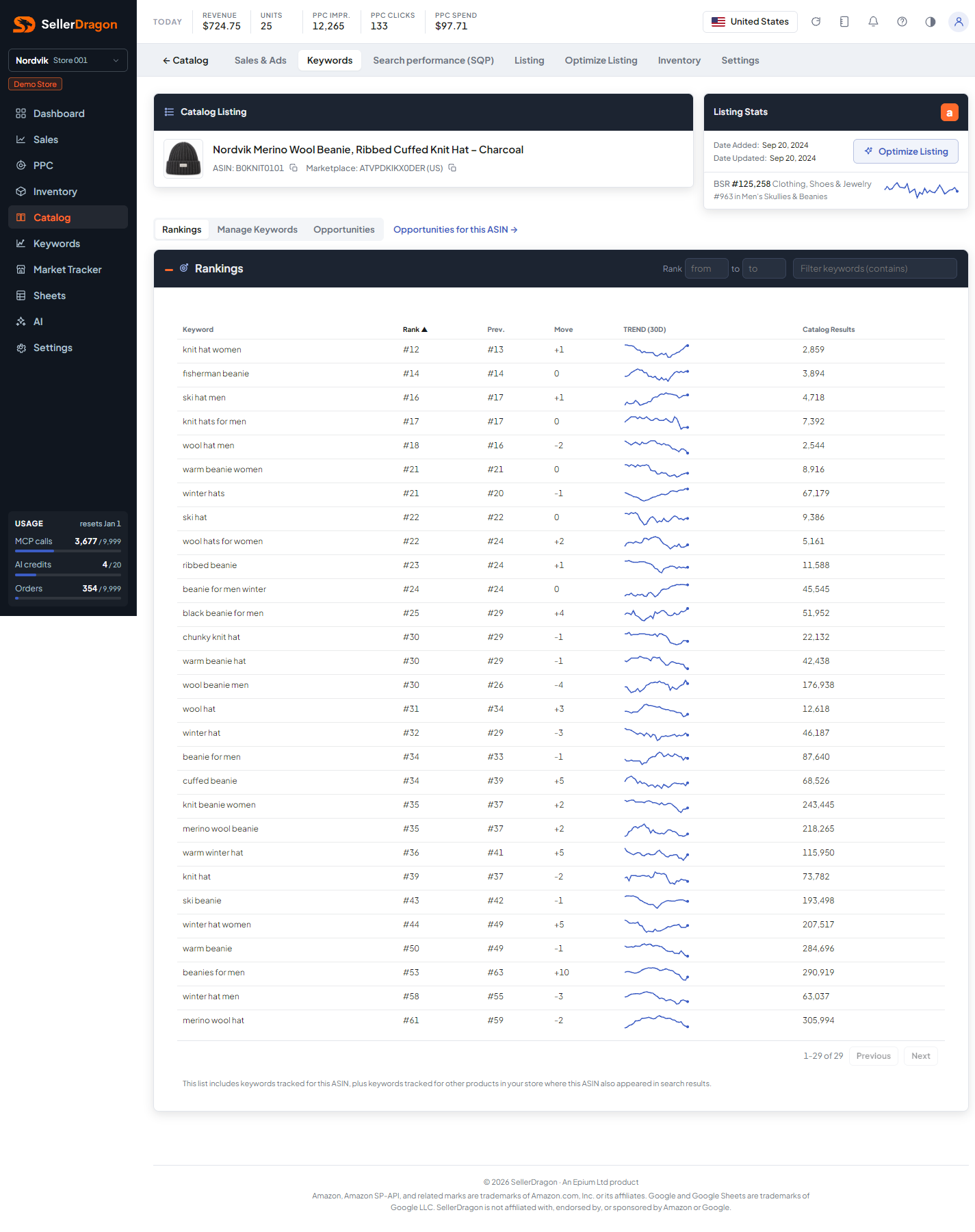
- Keyword with its current Rank, the Prev. rank from the previous check, and the Move in positions (positive is up).
- Trend (30d) is a small sparkline of the daily rank, up is better.
- Catalog Results is how many products Amazon returns for that search, a rough measure of competition.
- The Rank from / to boxes keep only keywords whose current rank is in that range. Filter keywords matches text. Click a header to sort; the pager sits under the table.
Rank history popup
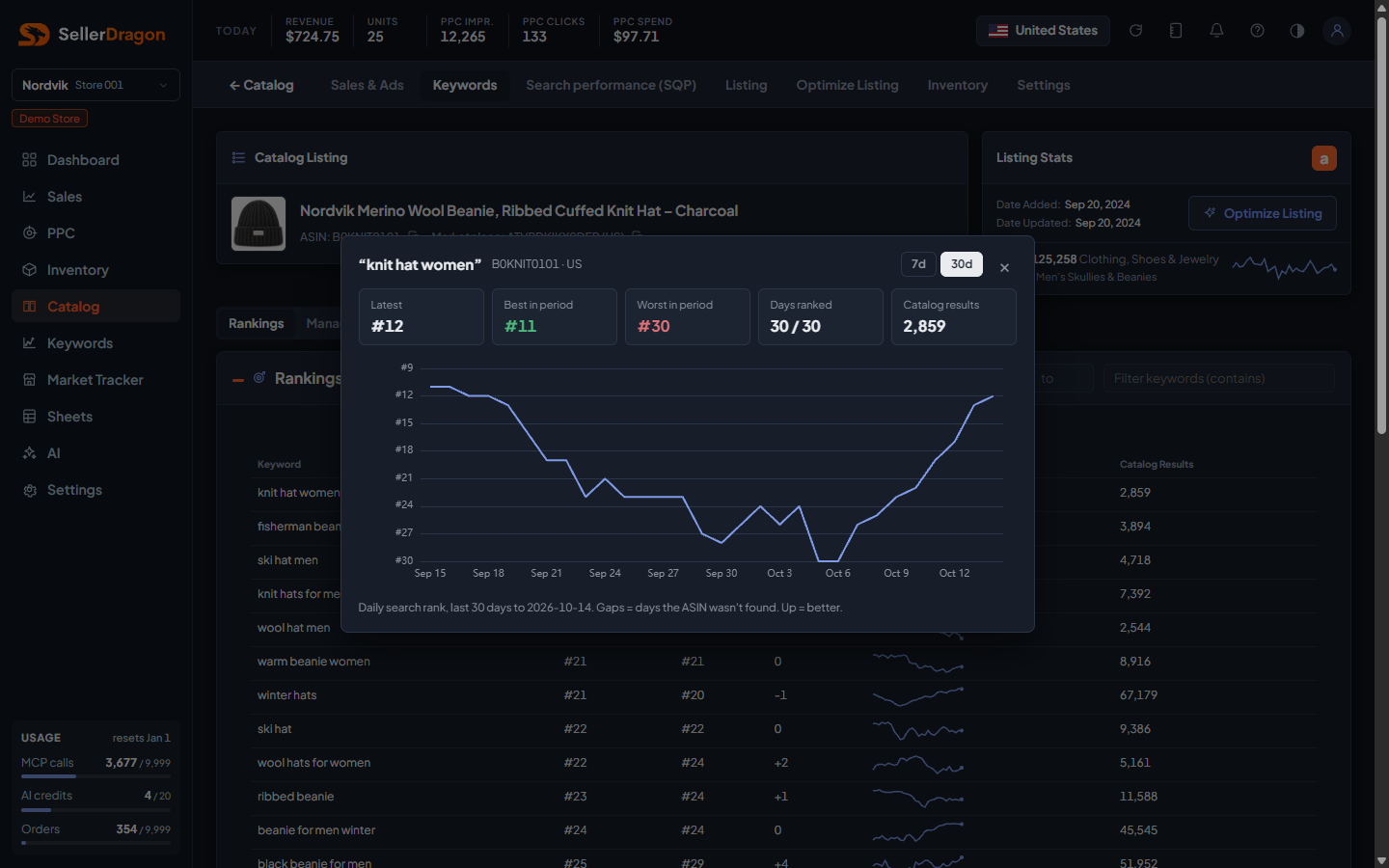
Click a keyword row for its daily rank over 7 or 30 days: latest, best and worst rank, how many days of the window the product was found, and the catalog results count. Gaps in the chart are days the ASIN was not in the results.
Manage Keywords tab
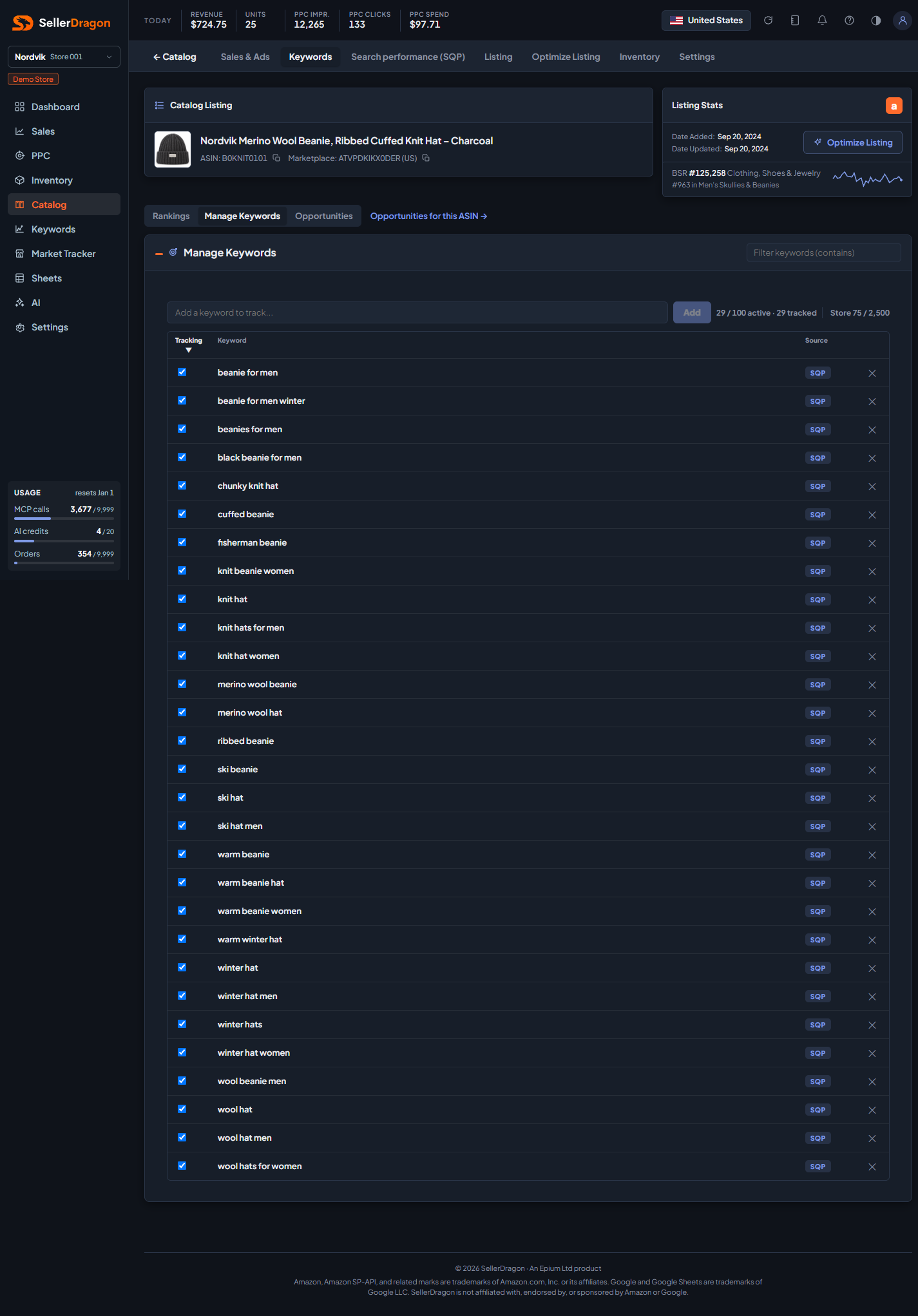
Type a keyword and press Add to track it. The counters show active keywords against the per-ASIN cap, how many are tracked in total, and the store-wide count against the store cap. The toggle in front of each row pauses or resumes tracking without deleting it; the cross removes it. Source says where the keyword came from (added by hand, or SQP for a suggestion you accepted).
Under the list, Suggested from Brand Analytics (SQP) proposes searches this product already appears in, best converting first, with searches, clicks, purchases and buy rate; the plus button adds one.
Opportunities tab
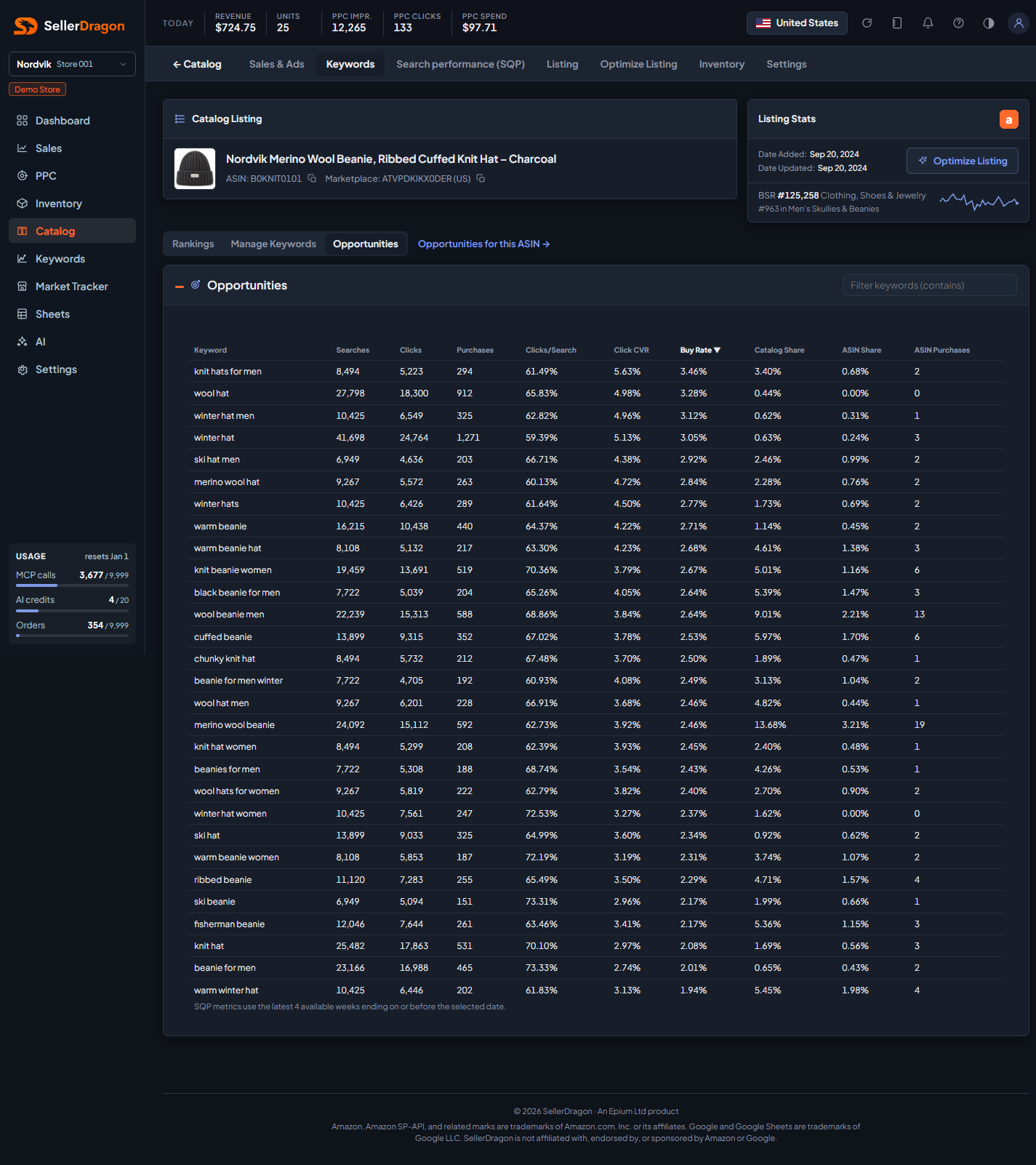
Every search from the latest four SQP weeks with at least 300 searches and 10 purchases where this product appears, ranked by Buy Rate (purchases over searches for the whole market). Clicks/Search and Click CVR describe how the market behaves on the search. Catalog Share is your whole catalog's share of purchases, ASIN Share is this product's share, and ASIN Purchases is its count. A high buy rate with a low ASIN share is the opportunity.
The link at the top of the tab strip opens the store-wide Opportunities page for this ASIN with the full filters.
Where to go next
- Keyword rankings for every tracked keyword across the store.
- Search performance (SQP) for the full search data of this product.
- Optimize Listing to work a keyword into the copy.