

What this page answers
Which Amazon accounts feed this dashboard, whether each one is healthy, and how to connect another.
Whose data and scope
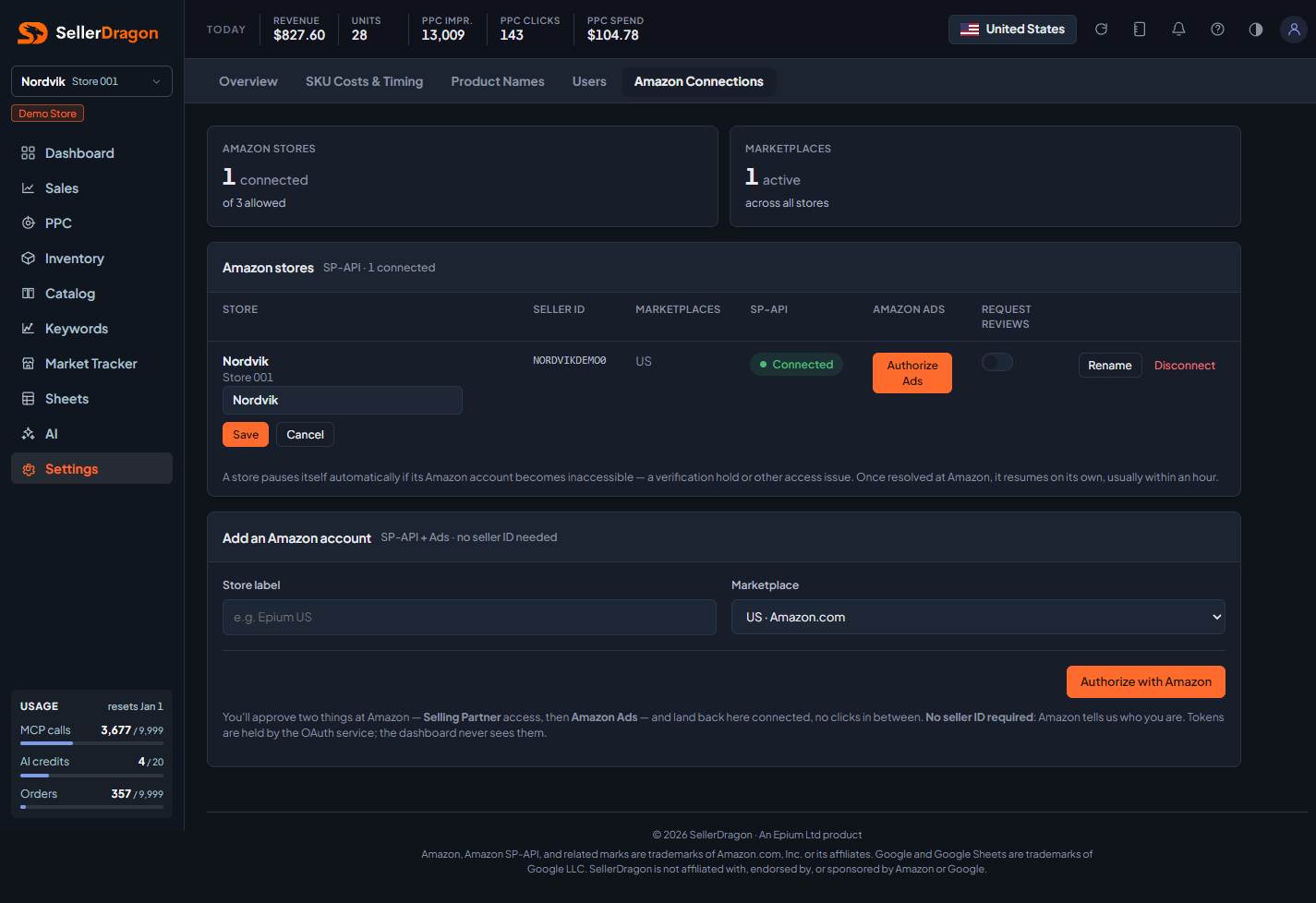
- The whole account. Connecting a store asks you to approve two things at Amazon, Selling Partner access and Amazon Ads, and lands you back here connected. No seller ID is needed; Amazon tells us who you are. The tokens are held by a separate service; the dashboard never sees them.
- The number of stores you can connect is a plan limit.
- A store pauses itself when its Amazon account becomes inaccessible, for example during a verification hold. It stays connected and resumes on its own once Amazon lifts the hold, usually within an hour.
- Managers can rename a store inline. The store name is the connection name the Google Sheets functions use to address the store.
How to read it
Setup in progress
Connections that stopped halfway: Selling Partner approved but not activated, or never finished at Amazon. Finish the step shown, or remove the stub and add the account again.
Amazon stores
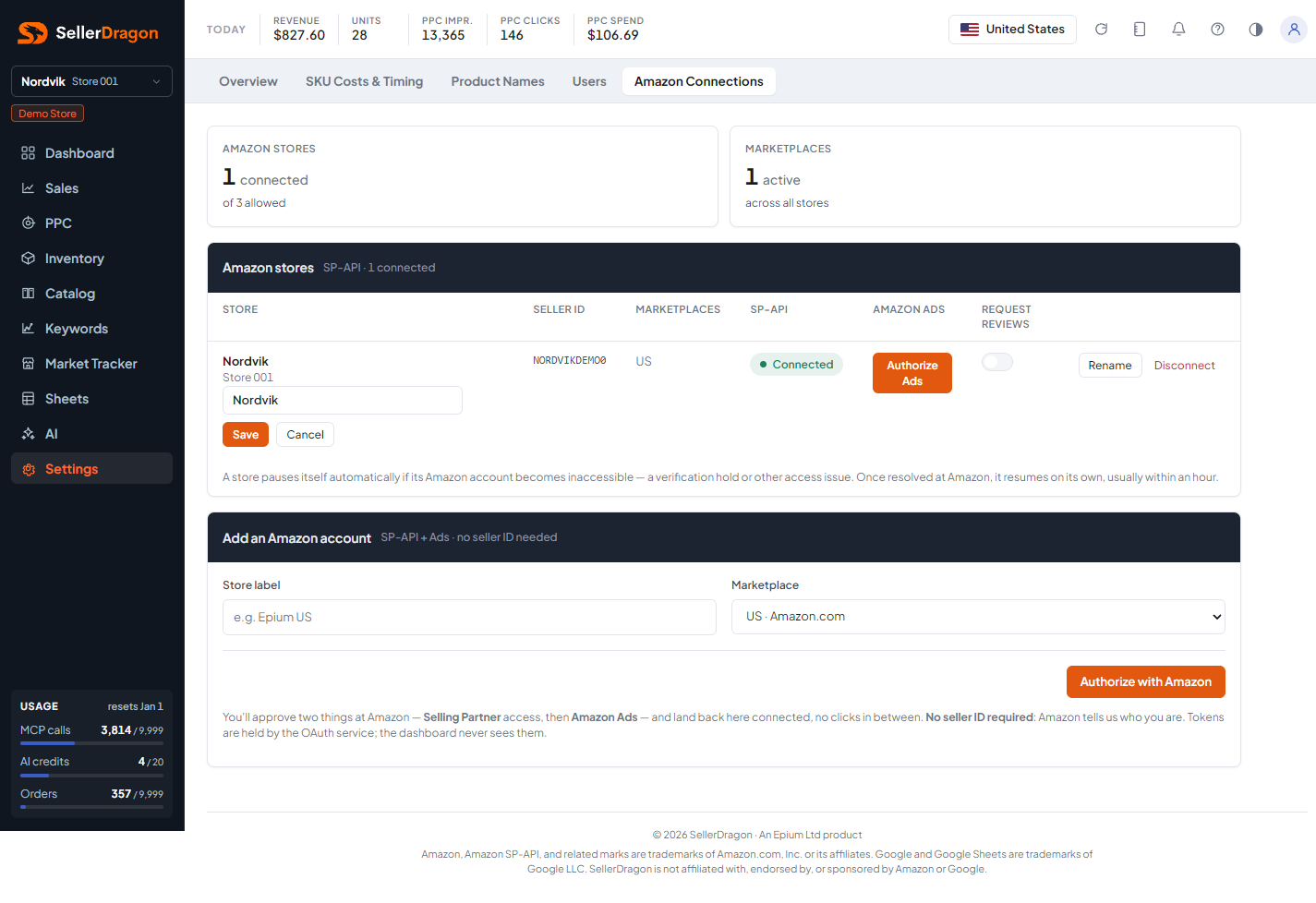
One row per connected store: name, seller ID, marketplaces with flags, Selling Partner status, Amazon Ads status, and the Request reviews switch, which lets SellerDragon ask Amazon for reviews on eligible orders. Paused stores sit here too, with the reason.
Disconnected
Stores whose Amazon connection was revoked, with the date until which their data is kept. Reconnecting restores the store and cancels deletion. After that date the store's data is permanently removed.
Add an Amazon account
Give the store a label, pick the marketplace, and start the Amazon approval. When the plan's store limit is reached the form says so instead.
Where to go next
- Users to give people access to the new store.
- Store Overview to compare your stores side by side.
- Get connected for the connection names in Google Sheets.