

What this page answers
Which campaigns, keywords and products need a decision today, and what to do about them without leaving the page. This is the page to work PPC from. The other PPC pages report; this one acts.
Whose data and scope
- One store and one marketplace. Sponsored Products, Sponsored Brands and Sponsored Display are all included; SB and SD rows carry a small tag.
- Ad numbers come from Amazon Ads. Sponsored Products use 7-day attribution, the same as the Amazon Ads console. Today's figures include the live stream, so a period that ends today is never empty.
- Only active items are listed by default: campaigns that are enabled, keywords that can serve, products with an enabled ad in an enabled campaign. Paused history is reachable through a filter whose state is set to All.
- Changes you make here are sent to Amazon straight away. A click is the decision; there is no confirmation step. The popup reads the current bid, modifier and state fresh when it opens, so you always act on what Amazon has right now.
- Changing anything at Amazon needs a plan that includes PPC writes. Without it the controls are visible but greyed out.
How to read it
Portfolio and view switcher
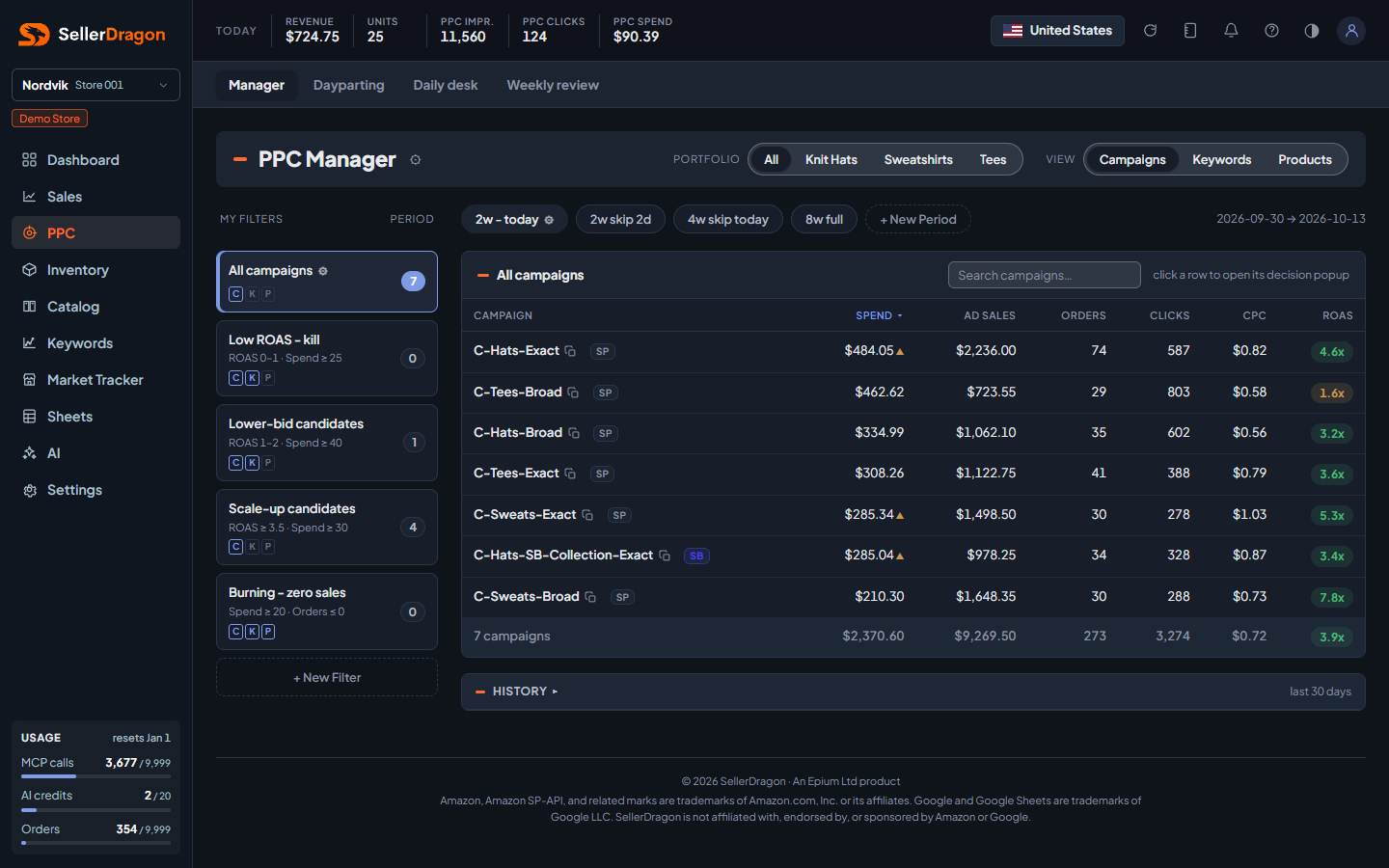
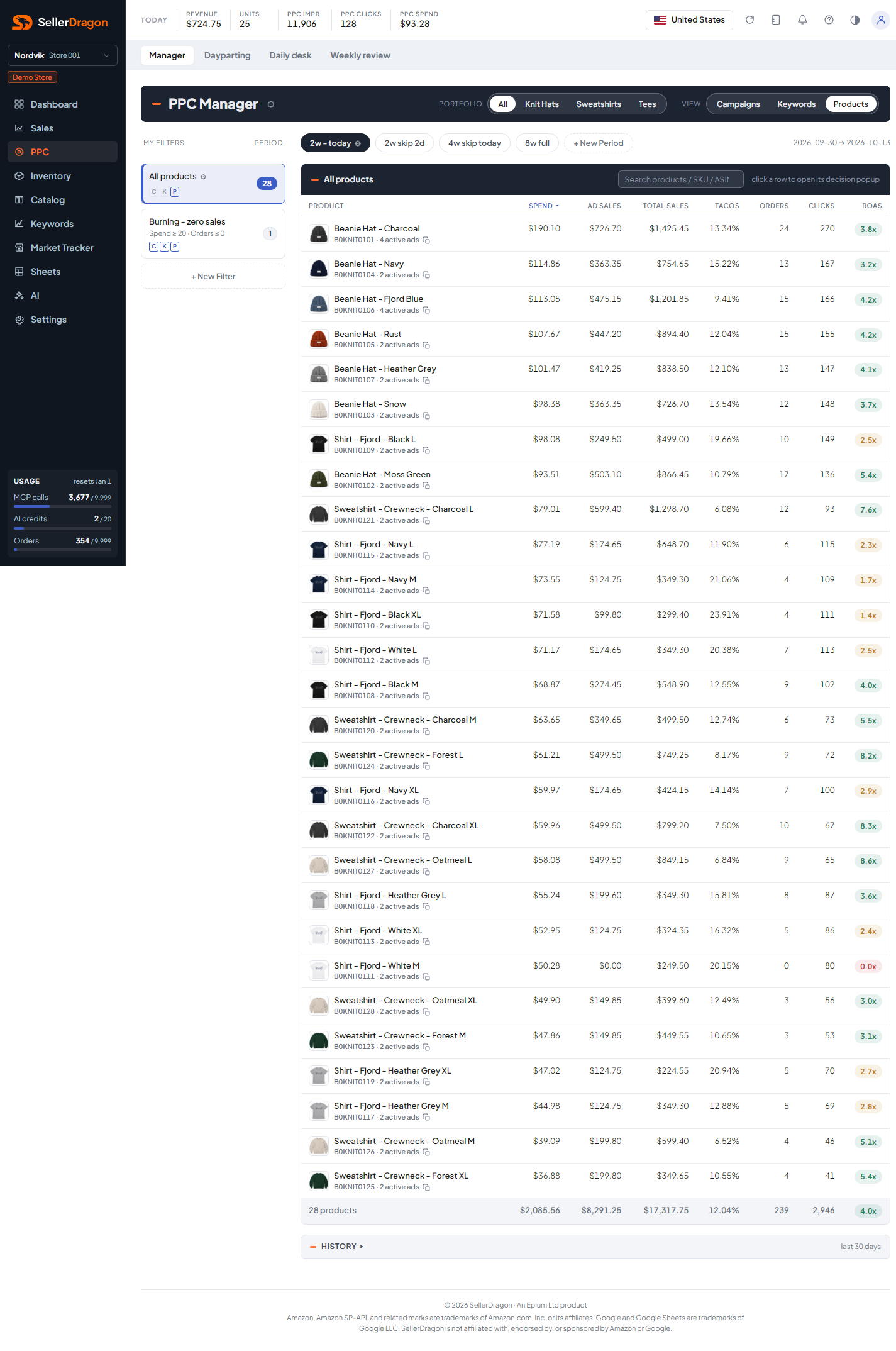
The band at the top holds the Portfolio scope (All, or one of your Amazon portfolios) and the View: Campaigns, Keywords or Products. The view is the grain of the table and decides which popup opens on a row click. The portfolio choice is remembered.
My filters rail
A filter is a saved set of conditions. Each card shows its name, a one-line summary of its ranges, three letters (C, K, P) for the views it applies to, and a count of rows that match it in the current period. The count updates whenever you change the period.
The first card, All campaigns (or All keywords, All products), is built in and cannot be deleted. Its gear lets you choose columns and whether paused items are included.
New accounts start with these filters: Low ROAS, kill (ROAS 0 to 1, spend at least $25), Lower-bid candidates (ROAS 1 to 2, spend at least $40), Scale-up candidates (ROAS at least 3.5, spend at least $30), Burning, zero sales (spend at least $20 and no orders), and Negation pass (10 or more clicks and no orders, keywords only). Edit or replace them to match how you work. You can keep up to 10 filters.
Period chips
A period is a saved time window: how many days it spans and how many of the latest days to skip. Skipping the latest one or two days avoids judging on days Amazon has not finished attributing. The defaults are 2 weeks to today, 2 weeks skipping 2 days, 4 weeks skipping today, and 8 weeks. The resolved dates are printed under the chips. Up to 5 periods.
Due today strip
When a snooze runs out, or a note on a PPC item reaches its due date, the item appears in a strip above the table with the reason. Open takes you to the matching popup.
Result table
One row per campaign, keyword or product that matches the active filter in the active period. Click a header to sort. The columns are the ones saved on the filter; spend, ad sales, orders, clicks, CPC and ROAS are the defaults. The footer sums the list.
- ROAS and ACOS pills are coloured by your bands (see the colour-band popup): grey when there was no spend, red below your red limit, green above your green limit, orange in between.
- A small amber triangle next to spend means the campaign hit its daily budget on at least one day in the period. Hover for the days.
- In the Keywords view, one row is one keyword text, combined across all campaigns and match types. The sub-line says in how many campaigns it is active.
- In the Products view, one row is one ASIN. Total sales is the product's total sales from orders, not only ad sales, and TACoS is all ad spend for the ASIN divided by that total. TACoS is only shown at product grain because a single campaign's spend cannot be set against shared product sales honestly.
- Snoozed rows are hidden from the active list. The footer shows "N snoozed hidden"; click it to show them greyed out with an Unsnooze button.
- The History card under the table lists every change made to the account in the last 30 days: from this dashboard, from the AI connection, or at Amazon directly.
Tabs and popups
Campaign decision popup
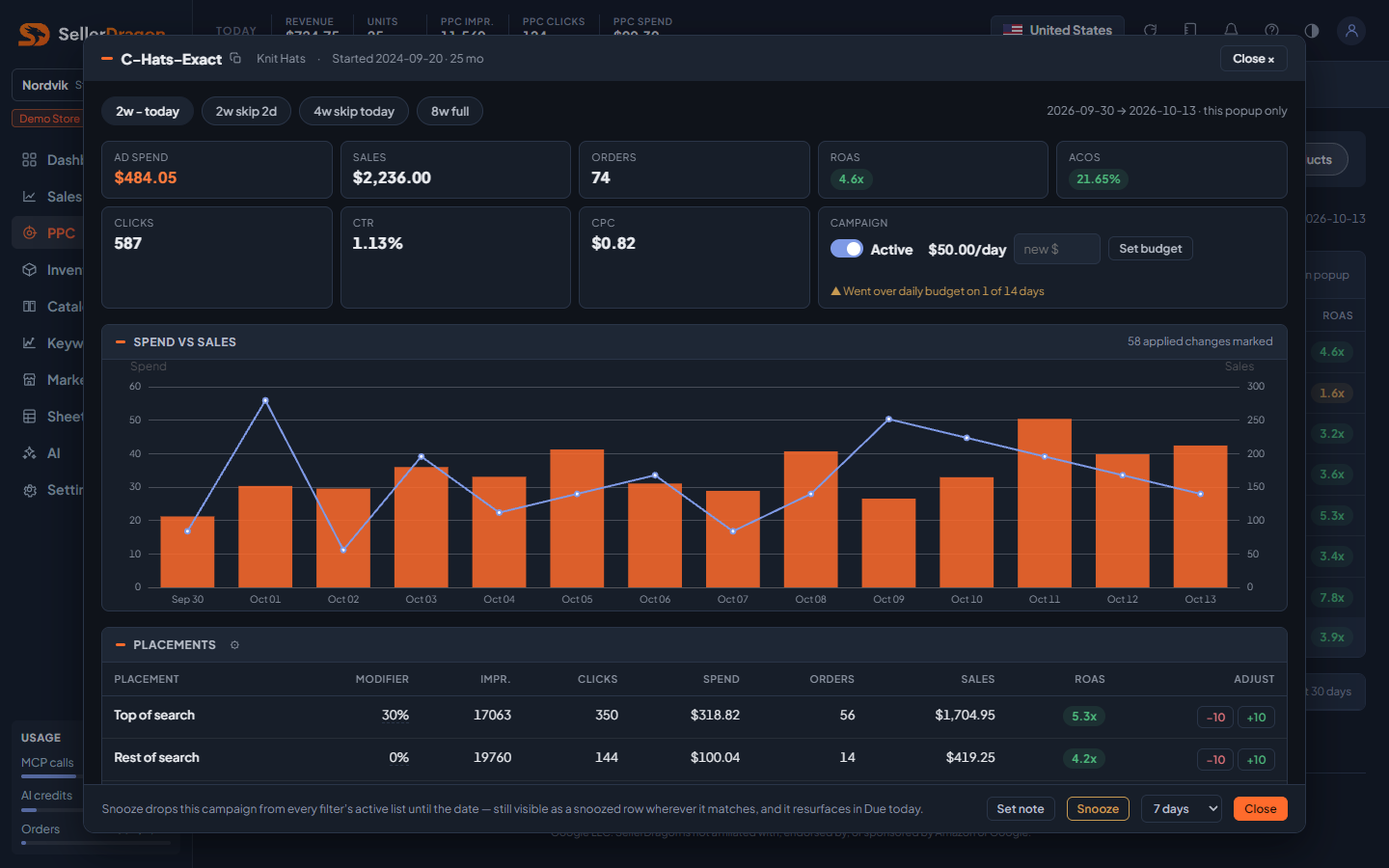
Opens on a row in the Campaigns view. Everything about one campaign on one scrolling screen:
- Period chips at the top change the period for this popup only. The master list keeps its own.
- KPI strip: ad spend, sales, orders, ROAS, ACOS, clicks, CTR, CPC for the popup's period.
- Campaign cell: the state toggle (enabled or paused), the daily budget with a box to set a new one, and a note when the campaign went over its daily budget, with the days on hover.
- Spend vs sales chart: one bar per day for spend, a line for sales, and markers on the days where a change was applied. This answers "did my last change work".
- Placements: Top of search, Rest of search and Product pages with their modifier and performance. The −10 and +10 buttons change the modifier by ten points; click the percentage to type an exact value.
- Keywords / targets: the top 40 targets by spend with state, bid and performance. The percentage buttons change the bid by that much; click the bid to type an exact value. A "was $X · date" line shows the last change. Hover a bid to see the effective bid per placement. Auto-campaign targets with no bid of their own show the ad group default, and the first change creates an override.
- Ad groups: shown only when the campaign has more than one. Clicking a row scopes the keyword and ads tables to that ad group.
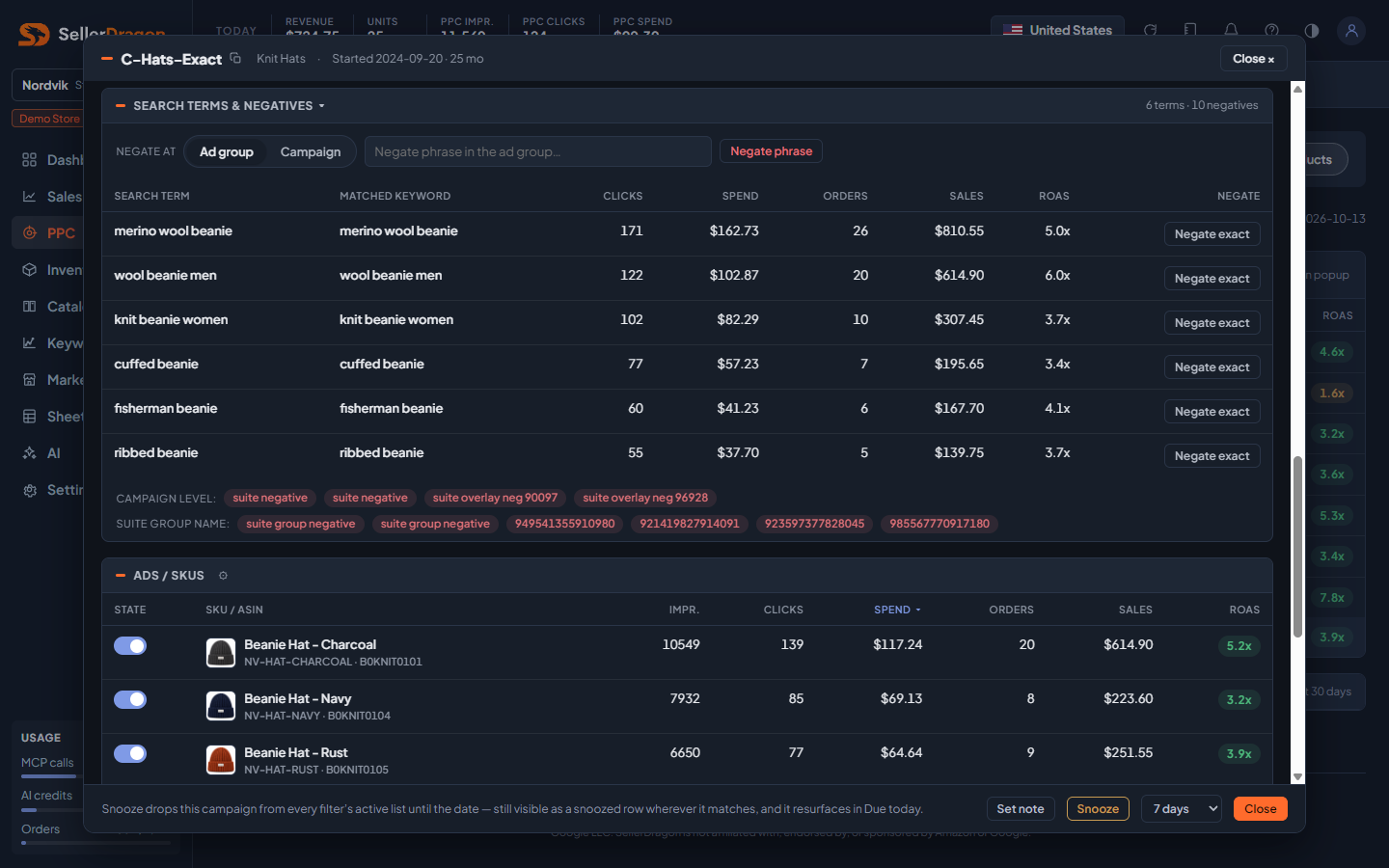
- Search terms & negatives (collapsed by default): what shoppers typed to trigger your ads, with the keyword that matched and the result. Negate exact adds that term as an exact negative. The free text box adds a phrase negative. Negate at chooses whether the negative goes on the ad group or on the whole campaign. Terms with 10 or more clicks and no orders are flagged in red; healthy terms keep the button but lose the red. Current negatives are listed under the table by level.
- Ads / SKUs: every advertised SKU in the campaign with its own pause toggle.
- History (collapsed): changes to this campaign in the last 30 days with the source.
- Footer: Set note opens a note on the campaign, with an optional due date. Snooze hides the campaign from every filter's active list for 3, 7, 14 or 30 days; it comes back through Due today.
Keyword decision popup
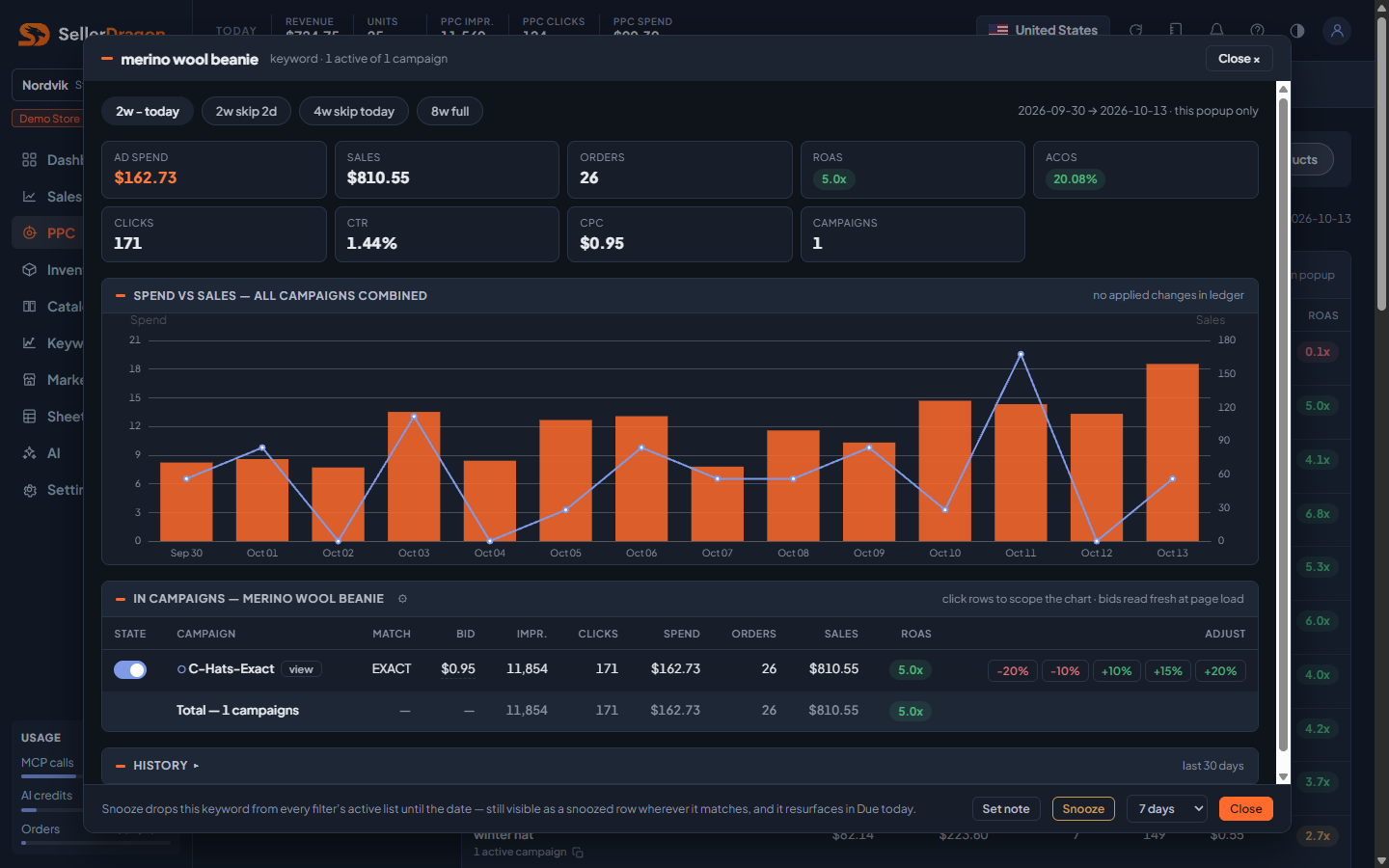
Opens on a row in the Keywords view. The keyword is shown as a tournament: one chart and total row for the keyword, and an In campaigns table with every instance (campaign and match type). Click instances to scope the chart to them. Each instance has its own pause toggle and bid buttons. View on an instance opens that campaign's popup on top. Instances in paused campaigns are hidden, with a count noted, because changing them would do nothing.
Product decision popup
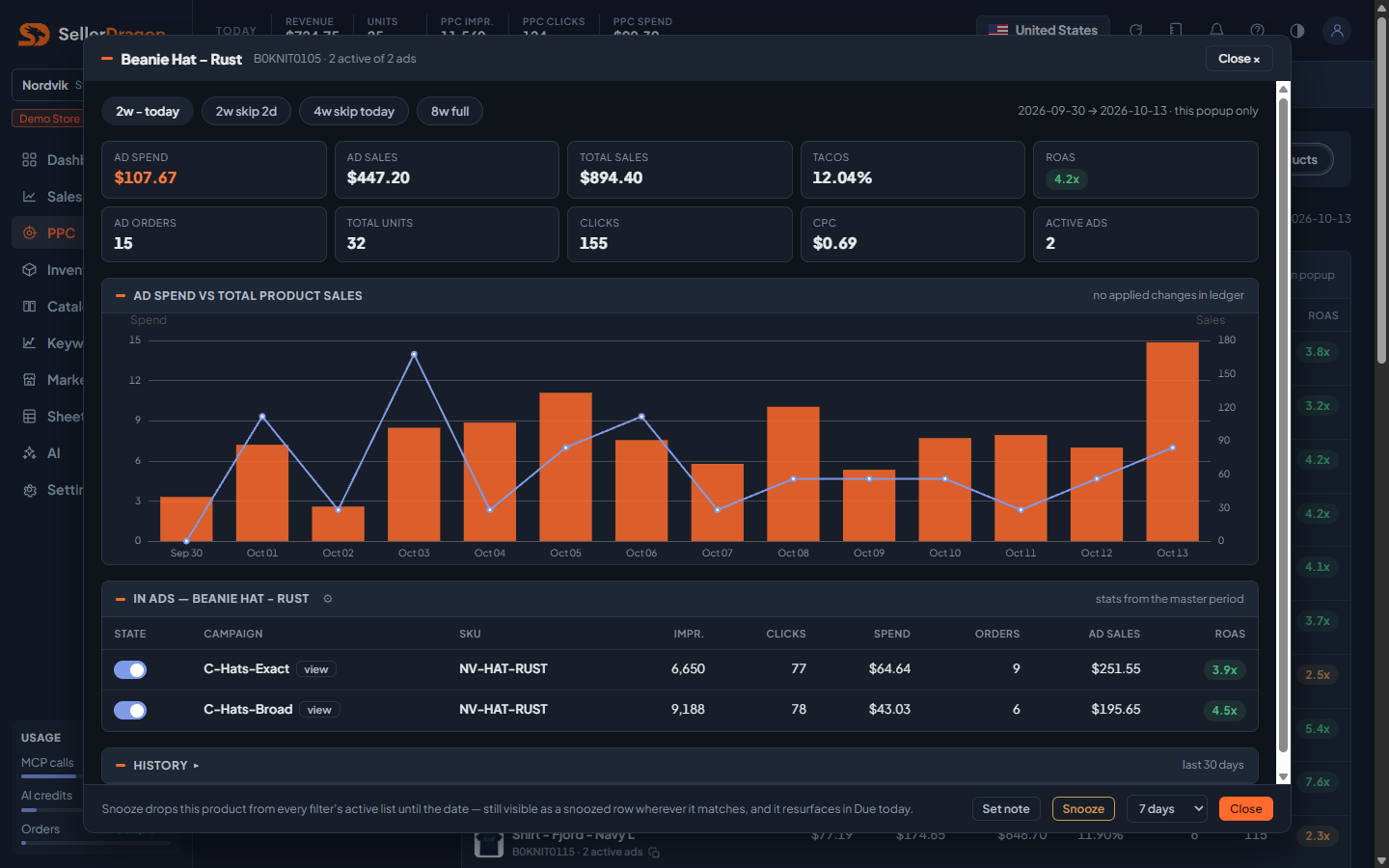
Opens on a row in the Products view. It answers "is advertising this product worth it": ad spend against the product's total sales, the honest TACoS, total units and the ad orders. The In ads table lists every ad (campaign and SKU) with a pause toggle and a View link to the campaign popup. Notes on a product are the same notes the listing page shows.
Filter editor
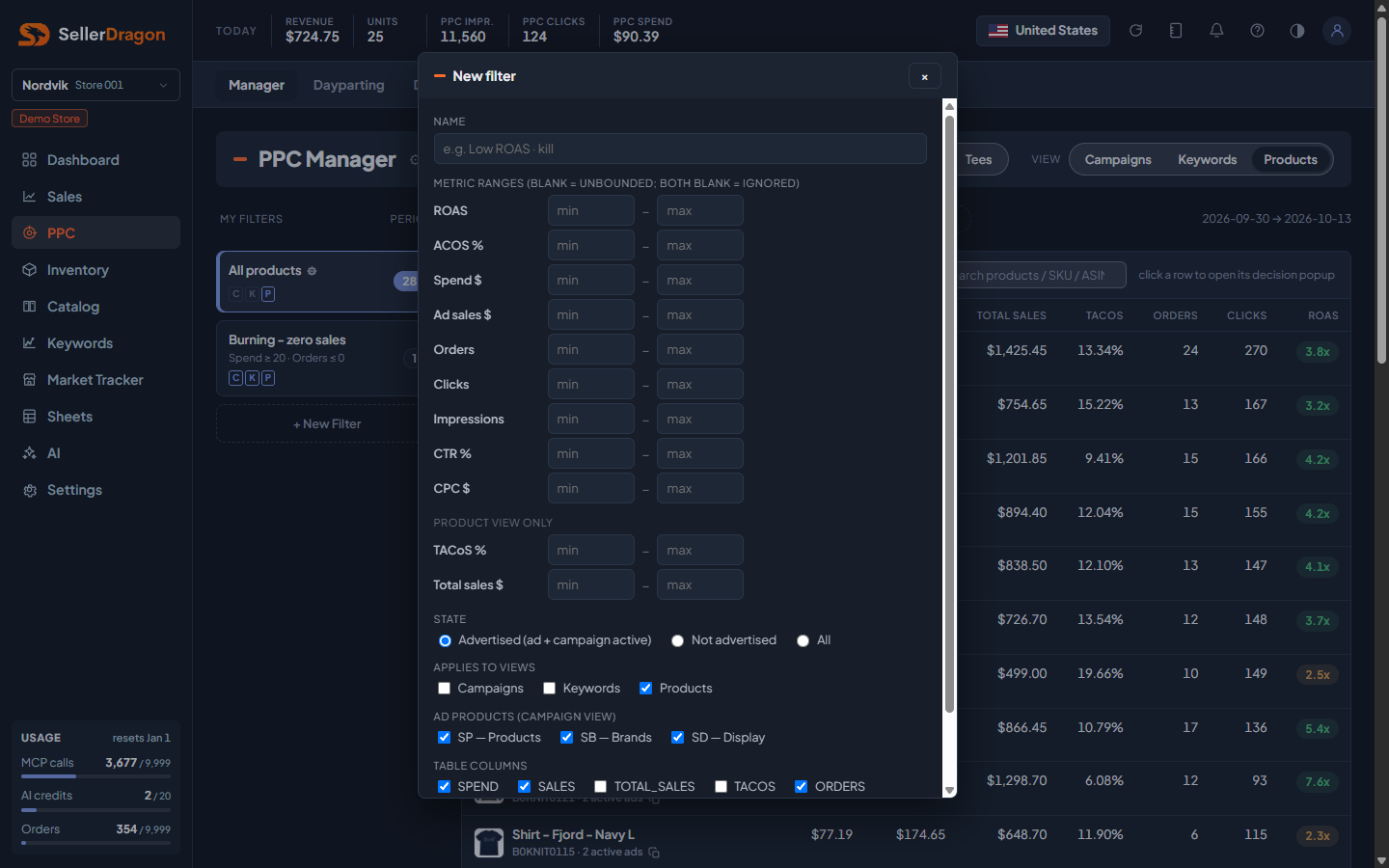
A filter has a name, a minimum and maximum per metric (leave a side blank for no limit; leave both blank to ignore the metric), a state choice (advertised, not advertised, all), the views it applies to, the ad products it covers in the Campaigns view, and the table columns it shows. TACoS and Total sales ranges only apply in the Products view.
Period editor
A period has a name, a span in days, and how many of the latest days to skip. Zero skip includes today.
ROAS and ACOS colour bands
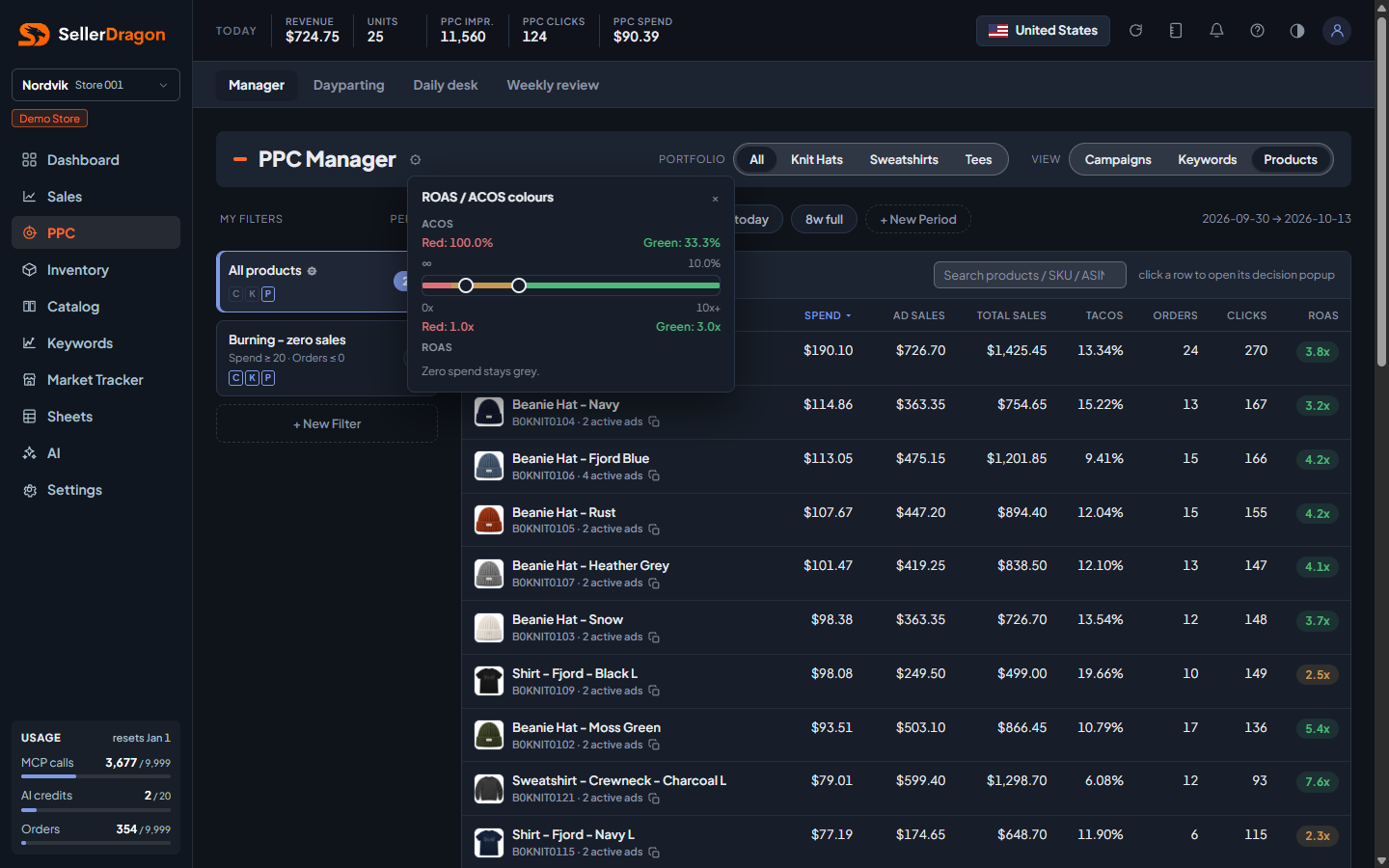
One track from 0x to 10x ROAS with two knobs: red below the first, green from the second, orange in between. ACOS is the inverse of ROAS, so the same knobs set the ACOS limits shown above the track. The bands apply to every ROAS and ACOS pill on the page and are saved per store.
Where to go next
- Daily desk for the AI briefing on what changed and what needs attention.
- Weekly review for the longer read.
- Dayparting to switch off hours that spend without selling.
- Notes for every note you set here.