

What this page answers
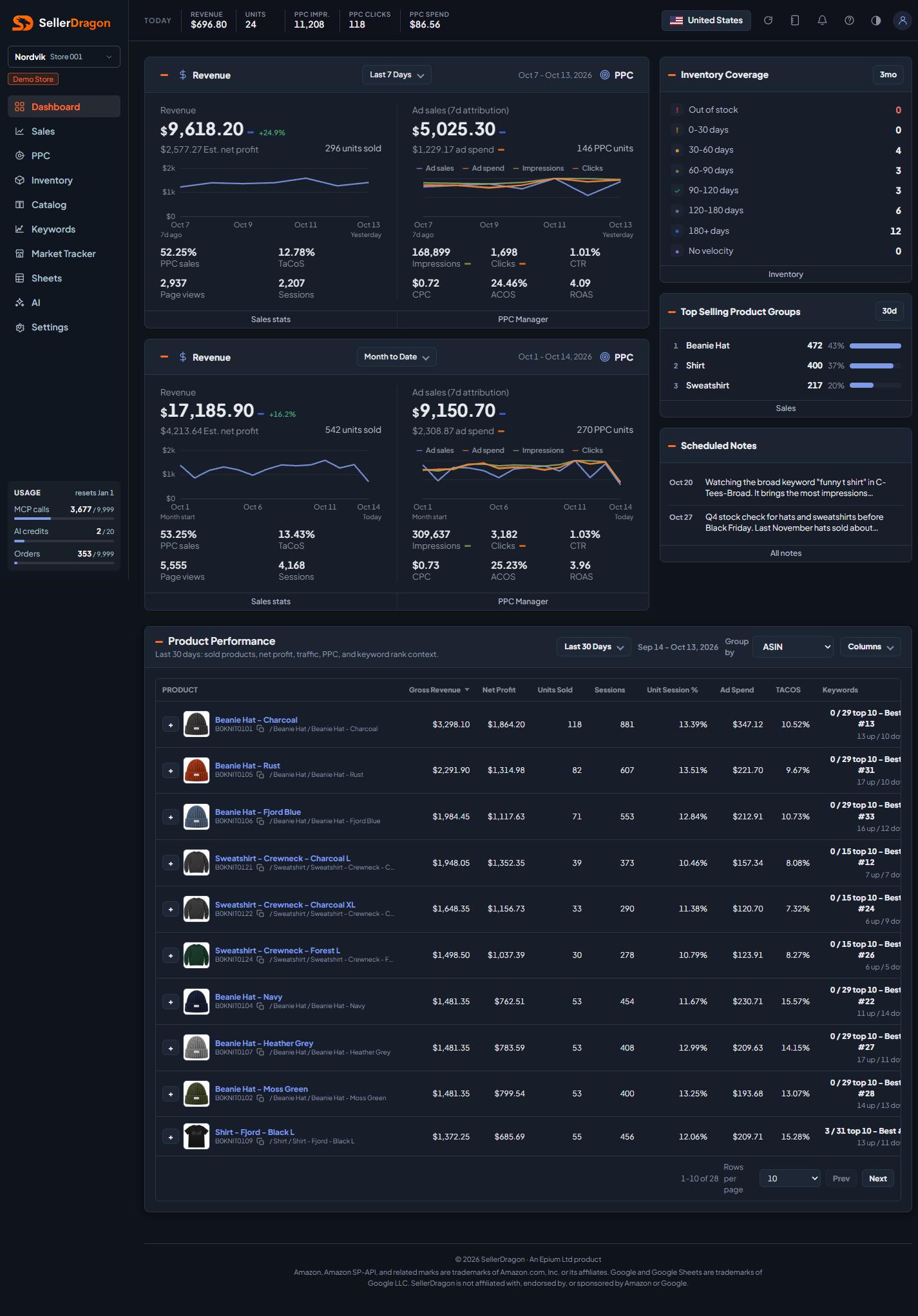
How is the store doing today, over the last week and this month, and which products are driving it. It is the page to open first every morning.
Whose data and scope
- One store and one marketplace at a time. The store is picked in the top left, the marketplace with the flag button in the header. Every number on the page follows that choice.
- Revenue, units and net profit come from your Amazon orders. Ad numbers come from Amazon Ads with 7-day attribution, the same basis the Amazon Ads console uses.
- Dates are the marketplace's local dates. "Today" ends at the last data we received, which is usually a couple of hours behind Amazon.
- The top bar always shows today, whatever period the cards use.
How to read it
Today bar
The strip in the header shows today's revenue, units, PPC impressions, clicks and spend so far. It is the same on every page.
Revenue and PPC cards
There are two card rows. Each row has a Revenue card on the left and a PPC card on the right, and each row has its own period picker. By default the first row shows the last 7 days and the second row month to date, so you can compare a short and a longer window side by side.
Periods you can pick: Today, Yesterday, Last Week, Last 7 Days, Last 30 Days, Last 90 Days, Month to Date, Last Month, Year to Date, Last Year, or a custom date range. The dates covered are printed next to the picker. Your choice is remembered in the browser.
Revenue card:
- Revenue is the ordered product sales for the period. The small percentage next to it compares with the period before (for example the previous 7 days).
- Est. net profit is revenue minus Amazon fees, refunds, your landed cost and ad spend. Landed cost comes from Settings, SKU Costs & Timing. When costs are missing for some SKUs the card shows a "Missing cost" count, and profit is overstated for those.
- Units sold is the number of units ordered.
- PPC sales is the share of revenue that came through ads.
- TaCoS is ad spend divided by total revenue.
- Page views and Sessions are the traffic numbers Amazon reports for your listings.
PPC card:
- Ad sales is sales attributed to ads within 7 days of the click. Ad spend is what the clicks cost. PPC units is the units those ad sales contained.
- Impressions, Clicks, CTR, CPC describe the ad traffic. CTR is clicks divided by impressions, CPC is spend divided by clicks.
- ACOS is spend divided by ad sales. ROAS is ad sales divided by spend. ROAS stays blank for a period where Amazon has not yet reported sales.
Clicking any number on a card adds or removes its line on the small chart underneath. The chart shows one point per day of the period, or per hour when the period is a single day.
The footer links go to the full Sales and PPC pages.
Side rail
Inventory Coverage counts your sellable FBA SKUs by how many days of stock they have left. Days of cover is sellable stock divided by the average daily sales over the months picked in the corner (1, 3, 6 or 12 months). Out of stock and 0-30 days are flagged. "No velocity" means the SKU has stock but no sales in that window, so cover cannot be computed. The footer link opens the Inventory page.
Top Selling Product Groups ranks your product groups by units sold in the last 30 days (or 7, 90 days via the corner button) with each group's share. Groups are the ones you set in Settings, Product Names. Products without a group show as Ungrouped.
Scheduled Notes lists the next open notes that have a due date. Click one to open Notes.
Product performance
The table lists every product that sold in the chosen period, sorted by gross revenue. Use the period picker for the window, Group by to roll children up into their parent, and Columns to add or hide columns.
Default columns:
- Product shows the image, the display name, the ASIN with a copy button, and the group path. The name links to the product's listing page.
- Gross Revenue is ordered product sales. Net Profit uses the same formula as the card above.
- Units Sold and Sessions come from orders and Amazon traffic. Unit Session % is units divided by sessions, Amazon's conversion rate.
- Ad Spend and TACOS are the product's own ad cost and ad cost as a share of its revenue.
- Keywords summarises keyword rank tracking: how many of the tracked keywords are in the top 10, the best rank, and how many moved up or down since the previous check.
Extra columns available through Columns: Net Margin, Orders, Page Views, Page Views Rate, Refunds, Ad Sales, PPC Units, ACOS, Clicks, Impressions and Category BSR.
Rows per page and the pager sit under the table.
Tabs and popups
Product detail expander
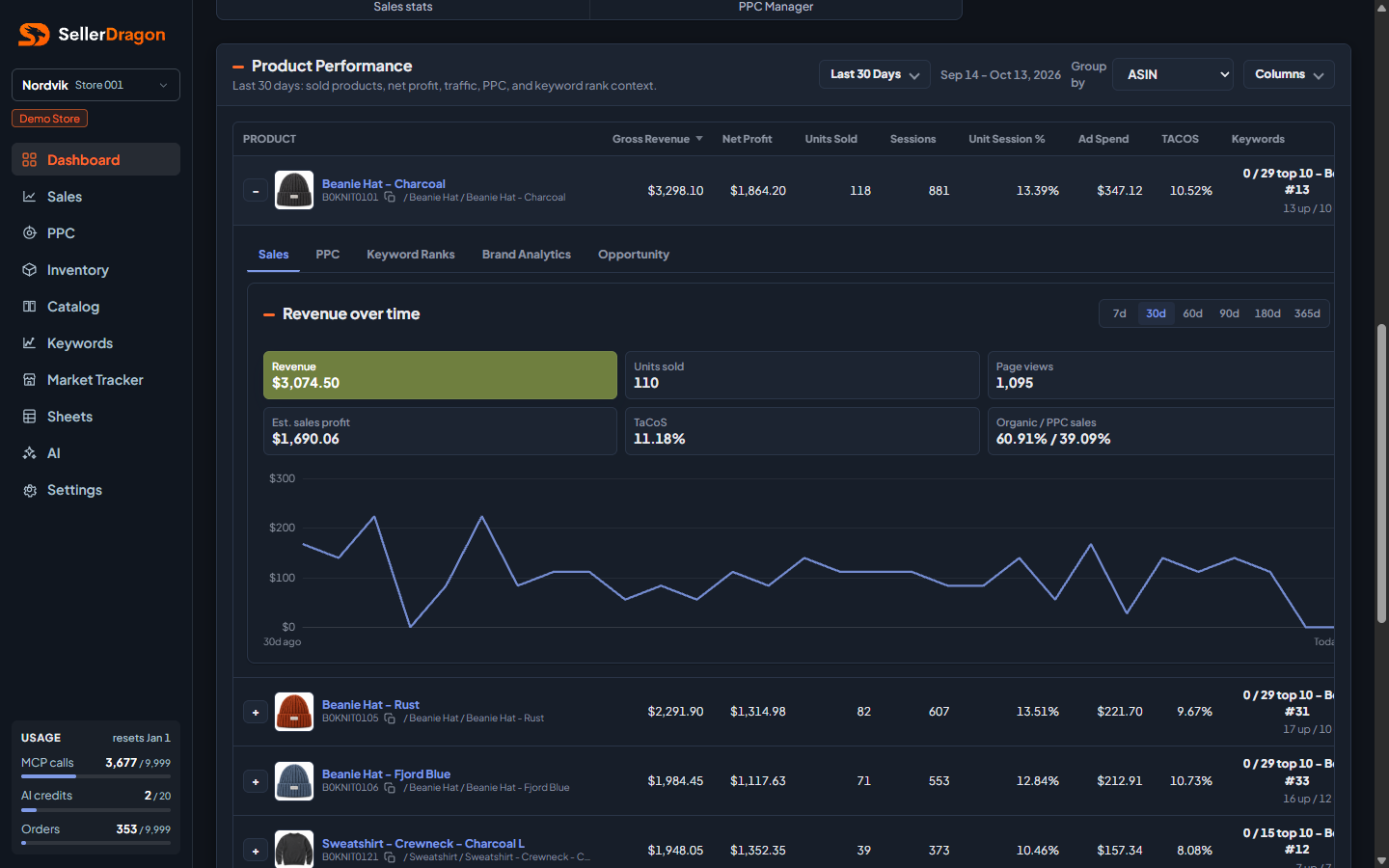
Click the plus button in front of a row to open the product's detail without leaving the page. It has five tabs:
- Sales: revenue over time with a window switch (7 to 365 days), plus revenue, units, page views, estimated sales profit, TaCoS and the organic versus PPC split.
- PPC: ad spend versus ad sales over 7, 30 or 60 days, with ACOS, ROAS, impressions, clicks and units.
- Keyword Ranks: every tracked keyword with its current rank, the previous rank, the move, and how many products Amazon returns for that search.
- Brand Analytics: the Search Query Performance view per keyword. Purchases for this ASIN and for the whole market, the ASIN's share and the catalog's share, click share and search volume. These metrics use the latest 4 reported weeks.
- Opportunity: the same keywords ranked by how well the market converts them (buy rate), so you can see searches where the market buys a lot but this product takes little share.
When grouped by Parent, the tabs combine all children of the family.
Where to go next
- Sales overview for the full sales picture.
- PPC manager for campaigns.
- Inventory overview for stock cover per SKU.
- Notes for the scheduled notes.
- Settings, SKU Costs & Timing to fill in landed costs so net profit is right.